Alerts and workflows
An alert in SpatialFlow is a workflow: a trigger, such as someone arriving at a geofence, connected to one or more actions, such as sending an email. You build workflows in the dashboard without code.
Start from a template
The fastest way in is a template. Open Workflows and click Create Workflow. On the empty canvas, click Start with a template. Each template comes with its trigger and a notification already connected, so you only fill in the details.
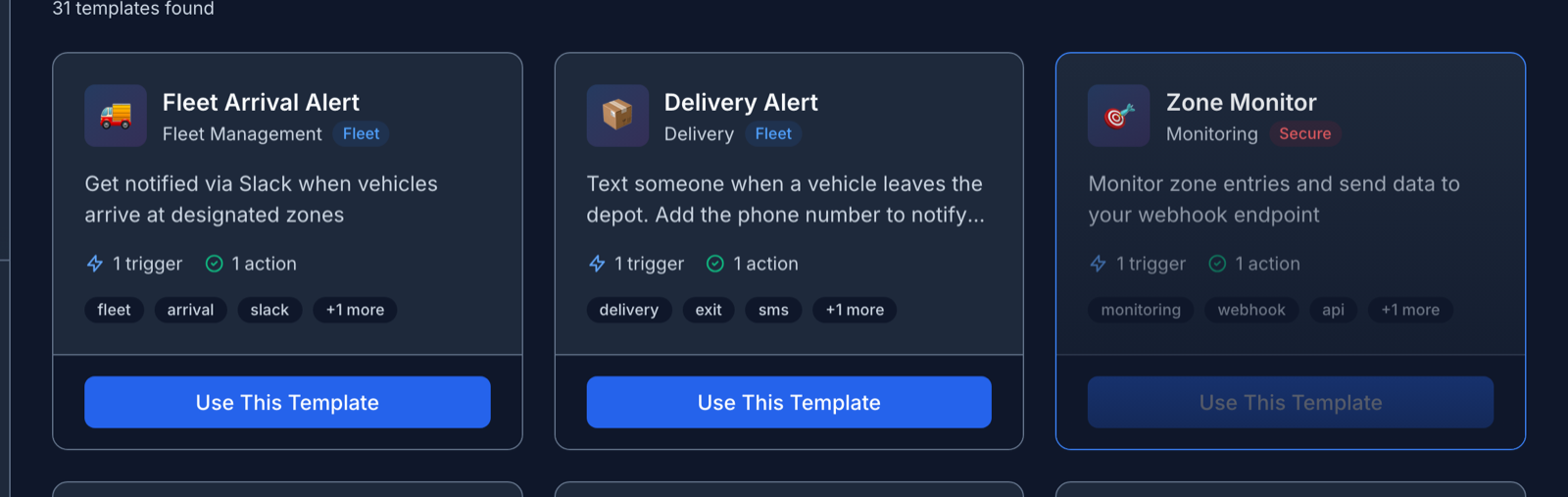
Click Use This Template on a card to open it in the builder. Templates in the Fleet Alerts category, such as Crew Arrived On Site and On Site Too Long, open a short setup dialog instead. Pick the geofence, choose Email (your inbox) or a connected Slack channel, and click Create automation. SMS isn't offered in that dialog.
Build or change a workflow
In the builder, the palette on the left has three tabs: Triggers, Actions and Conditions. Drag items onto the canvas and connect them in order. Click any node to change its settings.
For a geofence trigger, Trigger Type is Entry, Exit, Entry or Exit, or Dwell, which fires when someone stays longer than a set time. Choose what it watches with By geofence or By tag. A tag covers every geofence that carries it, including ones you add later.
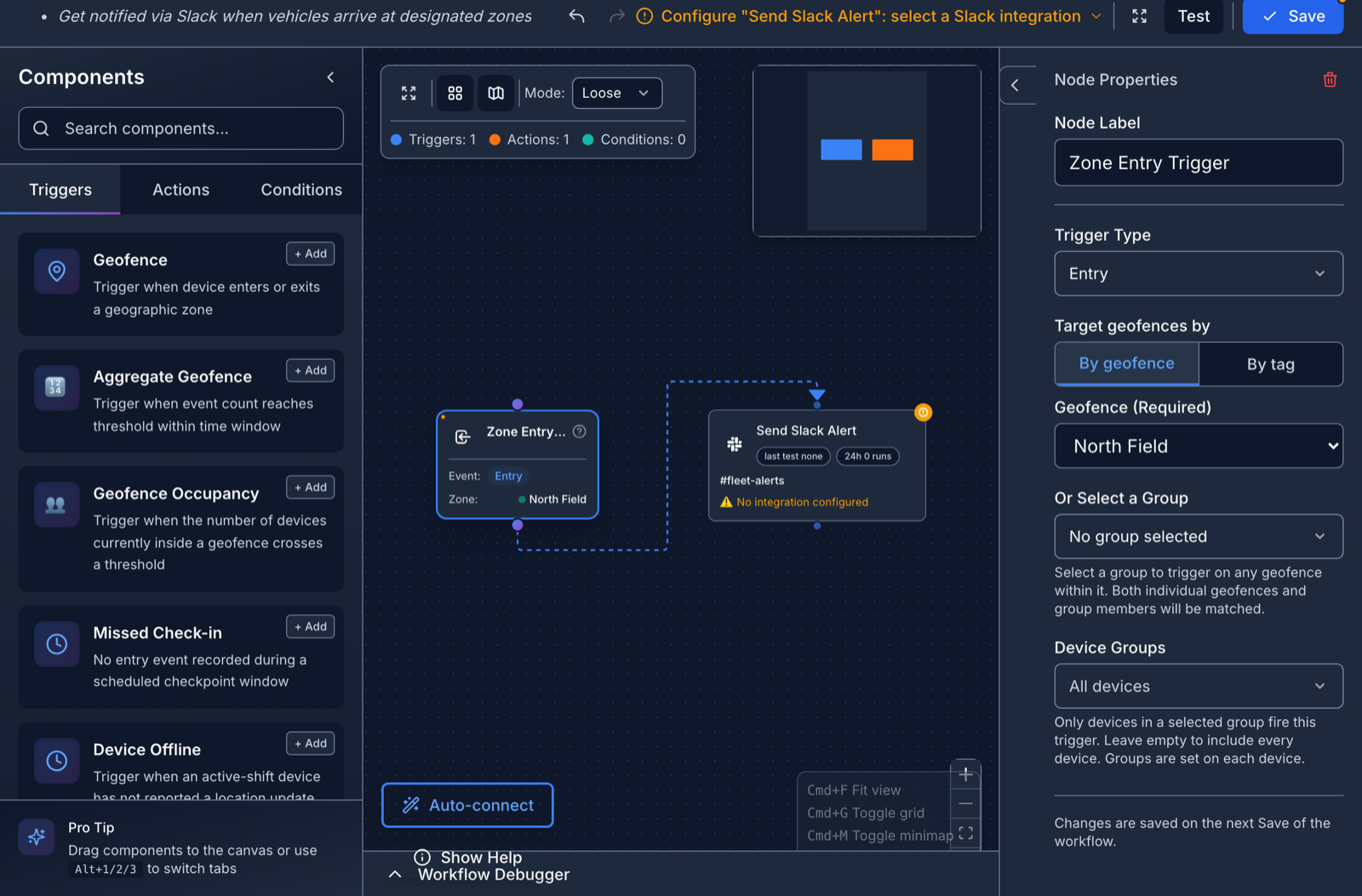
The actions are Email, SMS and Webhook. Slack, Microsoft Teams and Discord appear under the actions once you connect them (see below). Messages can include details from the trigger:
| Write | To get |
|---|---|
{{trigger.device_name}} | The device's name |
{{trigger.geofence_name}} | The geofence's name |
{{trigger.timestamp}} | When it happened |
An SMS can be up to 1,600 characters. A workspace can send 100 SMS an hour unless your SpatialFlow operator changes that.
When the workflow is ready:
- Click Save. A new workflow starts as a draft, which doesn't fire.
- Click Test to run it against simulated events, without waiting for a real arrival.
- Click Deploy to turn it on. The status beside the buttons reads Ready to deploy when nothing is missing. Otherwise it names what still needs fixing, such as an action with no message, and clicking it lists every issue.
Triggers
| In the palette | Fires when |
|---|---|
| Geofence | A device enters or leaves a geofence, or stays inside too long |
| Aggregate Geofence | Arrivals or departures at a geofence reach a count within a time window, for example 40 arrivals in 15 minutes |
| Geofence Occupancy | The number of devices inside a geofence right now crosses a threshold |
| Missed Check-in | One device doesn't reach a checkpoint geofence during a daily window |
| Device Offline | A device on shift stops reporting for longer than you allow |
| Device Stuck | A device on shift keeps reporting but doesn't move far enough |
| Shift Overdue | A shift runs longer than a set number of hours |
| Route Deviation | A device on a planned route strays outside it |
| Schedule | A time you set, such as every weekday at 17:00 |
Event Attribute and Webhook triggers are for workflows fed by other systems. Workflows in the developer docs covers them.
Alert on headcount
For an alert such as "tell me if fewer than two people are on site", use Geofence Occupancy instead of an arrival trigger. Start a blank workflow with Create Workflow, drag Geofence Occupancy onto the canvas, and pick the geofence. It watches exactly one geofence, not a tag.
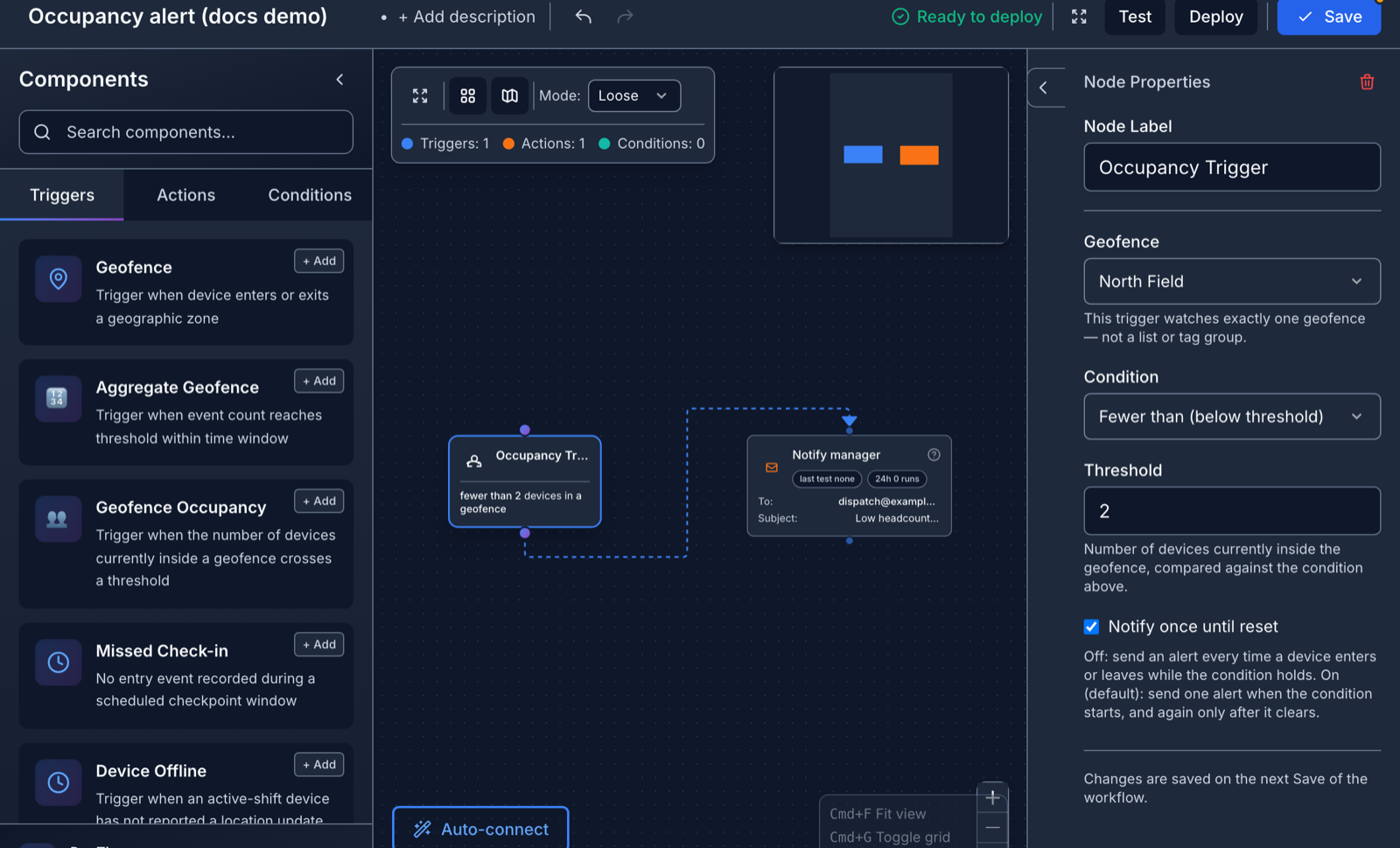
Set Condition to Fewer than (below threshold) or More than (above threshold), set the Threshold, and add your notification. SpatialFlow recounts on every arrival and departure. With Notify once until reset on, you get one alert when the count crosses the threshold and no more until it crosses back.
Three templates look similar but count something else. Smart Venue Monitoring (Arrivals) alerts on every arrival, with no threshold. Capacity Alert (Aggregate) and Smart Venue Monitoring (Occupancy) both count arrivals over a time window, and despite its name the second one never asks how many people are inside right now. For a true headcount, build from Geofence Occupancy.
For one person rather than a headcount, use Device Offline. It tells you a phone stopped reporting, wherever it is.
Alert on a missed check-in
Missed Check-in watches one device and one checkpoint geofence. Set the window with Window start and Window end, choose the Days the window starts, and set a Timezone if the checkpoint isn't in the workspace's. If the device hasn't entered the geofence by the end of the window, the workflow fires. Late-upload grace (minutes) waits a little longer, 15 minutes unless you change it, for locations a phone recorded offline and uploads late. The alert means SpatialFlow received no arrival, which isn't proof the person wasn't there.
Night-time exit alert for a hotel
"Tell me if someone leaves the hotel overnight", on a trip that moves from city to city:
- Create one geofence per hotel with Type an address, and name each after its hotel.
- On each one, turn on Schedule, pick the days you're in that city, and set the night window, for example 22:00 to 06:00.
- Set each geofence's Timezone to its city's zone. 22:00 is a different moment in each city.
- Tag every hotel geofence with the same tag, for example
hotel. - Create one workflow with a Geofence trigger, set Trigger Type to Exit, and target By tag with that tag. Don't use Entry or Entry or Exit: when the window opens at 22:00, everyone already inside counts as arriving. See Limit a geofence to set hours.
- Add an email or a Slack message, for example "
{{trigger.device_name}}left{{trigger.geofence_name}}at{{trigger.timestamp}}".
You get one message per person each time someone leaves. Nothing arrives when the window closes in the morning, so a quiet night means nobody crossed the line, at least among phones that were still tracking. A phone that is off or out of signal can't report leaving, so run a Device Offline alert alongside this one.
Send alerts to Slack, Microsoft Teams or Discord
Open Integrations, find the service, and click Connect. Give the connection a name and follow the steps for that service. Once it shows Connected, it appears as an action in the builder. Services marked Coming soon have a Request this button instead.
Check that an alert ran
Every workflow has a Runs page listing each run with its time, the event that started it, the result and the reason. A new workflow shows no runs until you deploy it.
When a live run fails, SpatialFlow opens an incident on the Alerts page. See Overview and incidents.