SpatialFlow for Field Workers
This guide covers the SpatialFlow mobile app: installing it, joining your team, and running a shift. If your manager set up SpatialFlow, this is everything you need on your phone.
Leia o cartão rápido em português do Brasil.
These iPhone screenshots were taken on a simulator on 2026-10-18 with the 1.0.16 Release app running newer, unreleased screens from the main branch, and a fictional local team ("Lakeview Grounds Crew"). Your store version may look slightly different.
- A phone (iOS or Android)
- The invitation email or QR code from your manager
- A few minutes to grant location permission
Install the app
- iPhone: search the App Store for SpatialFlow (subtitle "Field Tracking & Geofencing").
- Android: search Google Play for SpatialFlow.
Tapping an invite link or scanning a QR code before you install does not take you to the store on its own. It opens a web page with an App Store button and a Google Play button, and you pick yours. On Android there is also a strip across the top of that page with an Open in App button, which goes to the app if you have it and to Google Play if you don't. Install first, then open the invite link again.
Accept your invitation
Open the email from your manager and tap the link, or open your camera app and scan the QR code they gave you. Either way, the app opens to a screen showing your workspace name and the role you were invited as.
If you're already signed in to SpatialFlow, the app checks the invitation first. When it went to the email you're signed in with, the app asks whether to join the workspace it names. Tap Join and you join without signing out, and the app tells you the role you have there. Tracking stops on the phone, the app tries to end any open shift in your current workspace, and then it switches to the new one. If that request fails, the shift stays open until SpatialFlow closes it after a day. When the invitation went to a different email, the app shows that address and asks whether to sign out so you can accept it with that account. You stay signed in if the invitation was already used, was revoked or has expired, and the app tells you why. After too many attempts, the app tells you how long to wait before opening the invitation again. The phone stops recording while it asks the server about the join, and you can't start tracking until it has an answer. If the join doesn't go through, tracking comes back on in your current workspace and the app tells you so. If the app can't reach SpatialFlow, you stay signed in and can try again, but the join may still have gone through: if the new workspace is listed the next time you sign in, it did. To switch to it, sign out, sign back in and choose it.
If you already belong to the workspace, accepting keeps the role you have there rather than the one in the invitation. The app says which role that is, and an owner can change it on the Team page.
Accepting an invitation to another workspace deletes locations this phone recorded but hasn't uploaded yet. Before accepting, the app tries to upload them. If some are still waiting, it tells you how many. Tap Cancel to keep them and open the invitation again once you're online and they've uploaded. If you were signed out, sign in to your current workspace first so they upload. Accept anyway deletes them.
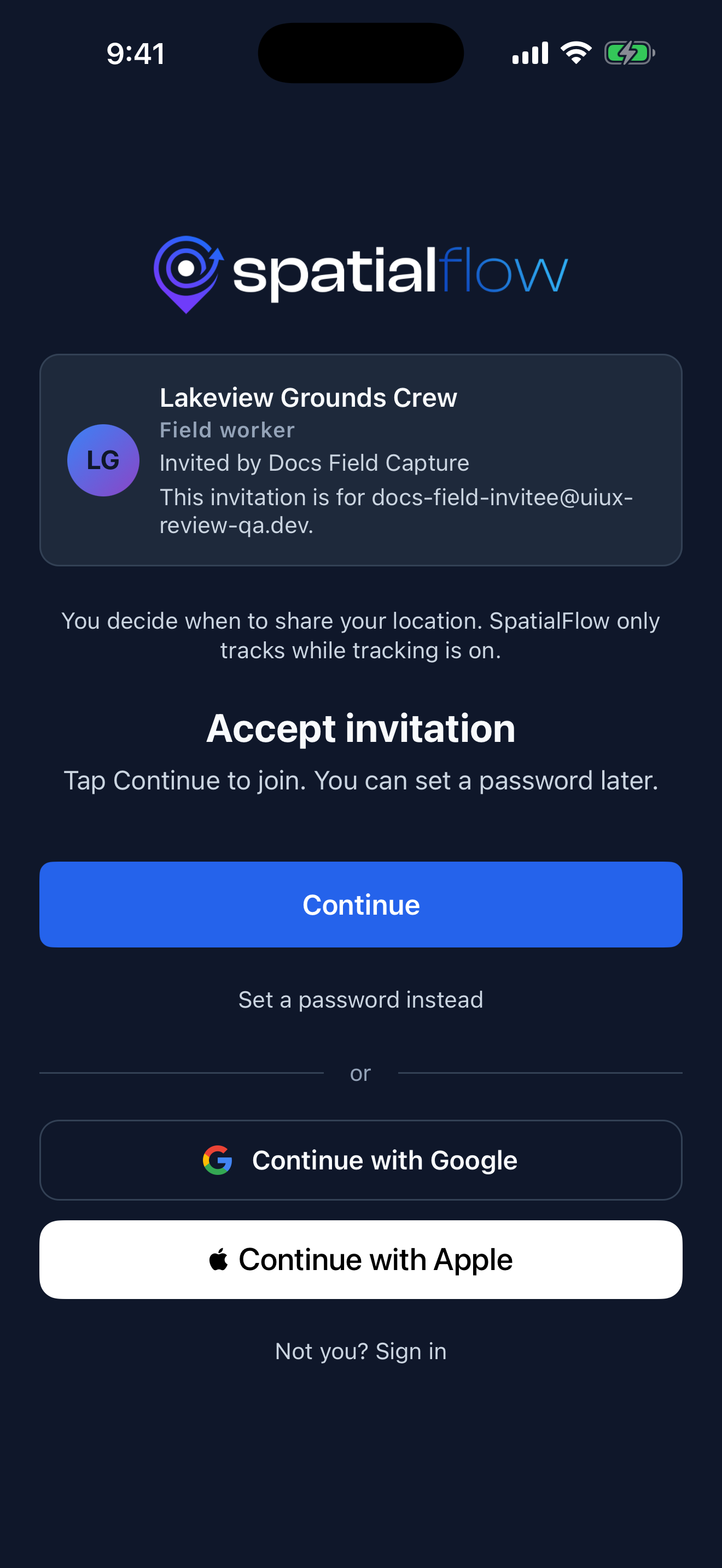
What happens next depends on whether you already have a SpatialFlow account with that email:
- New to SpatialFlow: tap Continue. That's it. The invitation link is your first sign-in, so there's no password to choose. If you'd rather have one, tap Set a password instead, fill in both fields, and tap Finish setup. Or tap Continue with Google, or the Apple button on an iPhone, using the account for the email the invitation went to. Any other account gets a message that it doesn't match the invite.
- Already have an account: enter your existing password and tap Finish setup, or sign in with whichever provider you used before. Continue with Apple only appears on iPhones. If your account uses Apple and your phone is an Android, open the SpatialFlow website in a browser, choose Forgot your password? on its sign-in page, set a password from the email you get, then open the invitation link again and enter that password.
If the invite has already been used, revoked, or has expired, you'll see a message saying so instead of the sign-in form. See Troubleshooting below. If the invitation isn't meant for you, tap Not you? Sign in to go to the sign-in screen instead. The invitation stays unused.
If you're new to SpatialFlow and open the invitation on a laptop instead of your phone, the page tells you to install the app and, on a wide screen, shows a QR code to scan with your phone. That's on purpose: the link works once, and your account belongs on the device you'll actually work from. If you already have an account, the page asks you to sign in with it: your password, or a button for the provider you usually sign in with, such as Google. An Apple-only account is told to accept in the app instead, and an account with no password yet gets a Set a password button. Accepting in the browser uses up the link, so sign in on your phone instead.
Sign in
Once your account exists, sign in with your email and password, or with Continue with Google / Continue with Apple if that's how your account was set up. If your company uses single sign-on, Sign in with SSO appears once you've typed your work email.
If no SpatialFlow account uses your Apple ID, the app asks before it creates one. This happens most often when you chose Hide My Email, since your team invited a different address. Tap I already have one and sign in with that account's email or Google instead, or Create a new account if you're new.
If you joined by tapping Continue and never chose a password, you don't have one yet. To add one, tap Forgot password? on the sign-in screen. It opens the SpatialFlow website in your phone's browser. Enter your email, tap Send Reset Link, and follow the link in the email you get. The link works for one hour.
Allow location access
After you sign in, and after you pick a workspace if you have more than one, the app checks location access. If the phone doesn't already allow it, SpatialFlow shows its own screen before the phone's permission prompts, explaining why: Share your location while tracking is on. It says your location goes to your workspace only while tracking is on, including while the app is in the background, and that sharing stops when you tap Stop. Tap Allow location to continue. Not now skips the screen, and the app asks again when you start tracking.
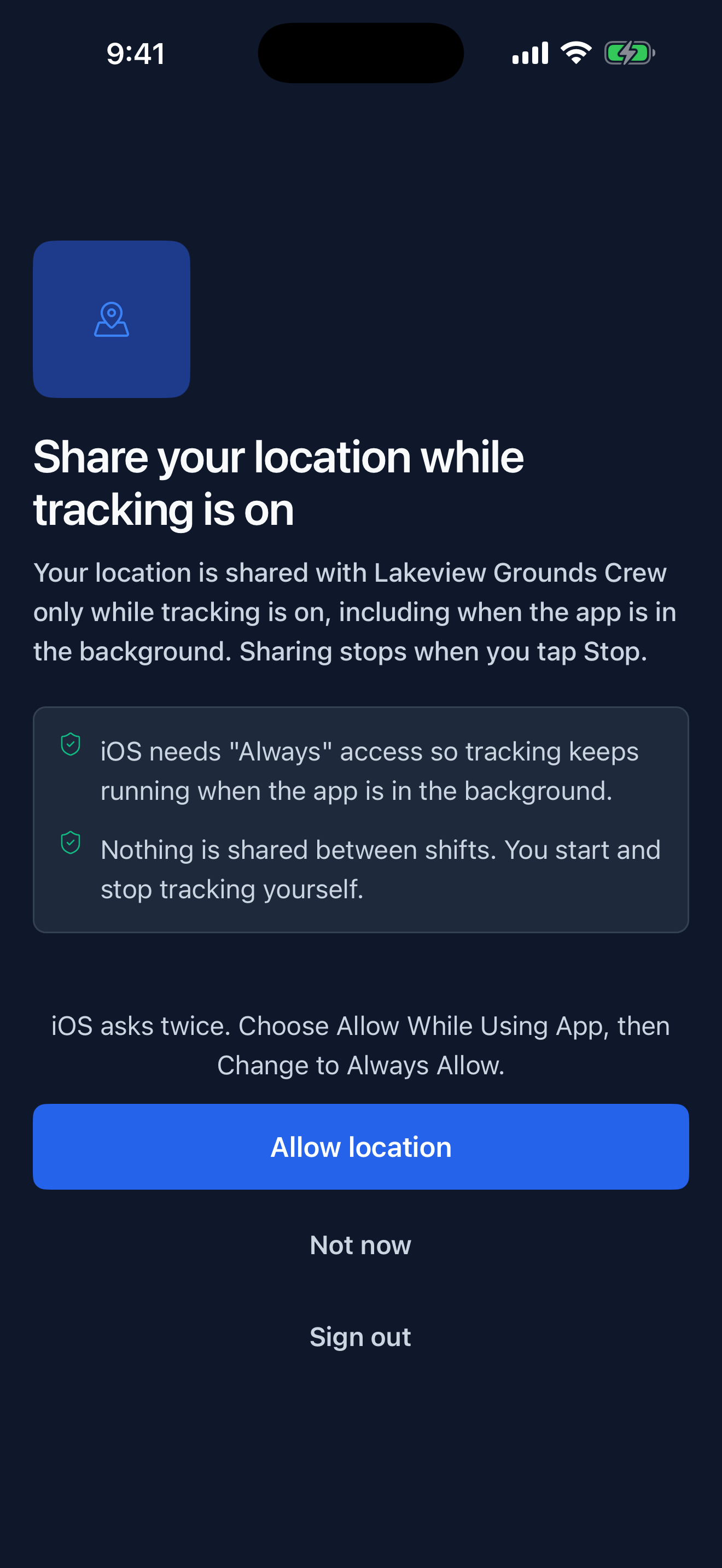
What the phone asks next depends on the platform:
-
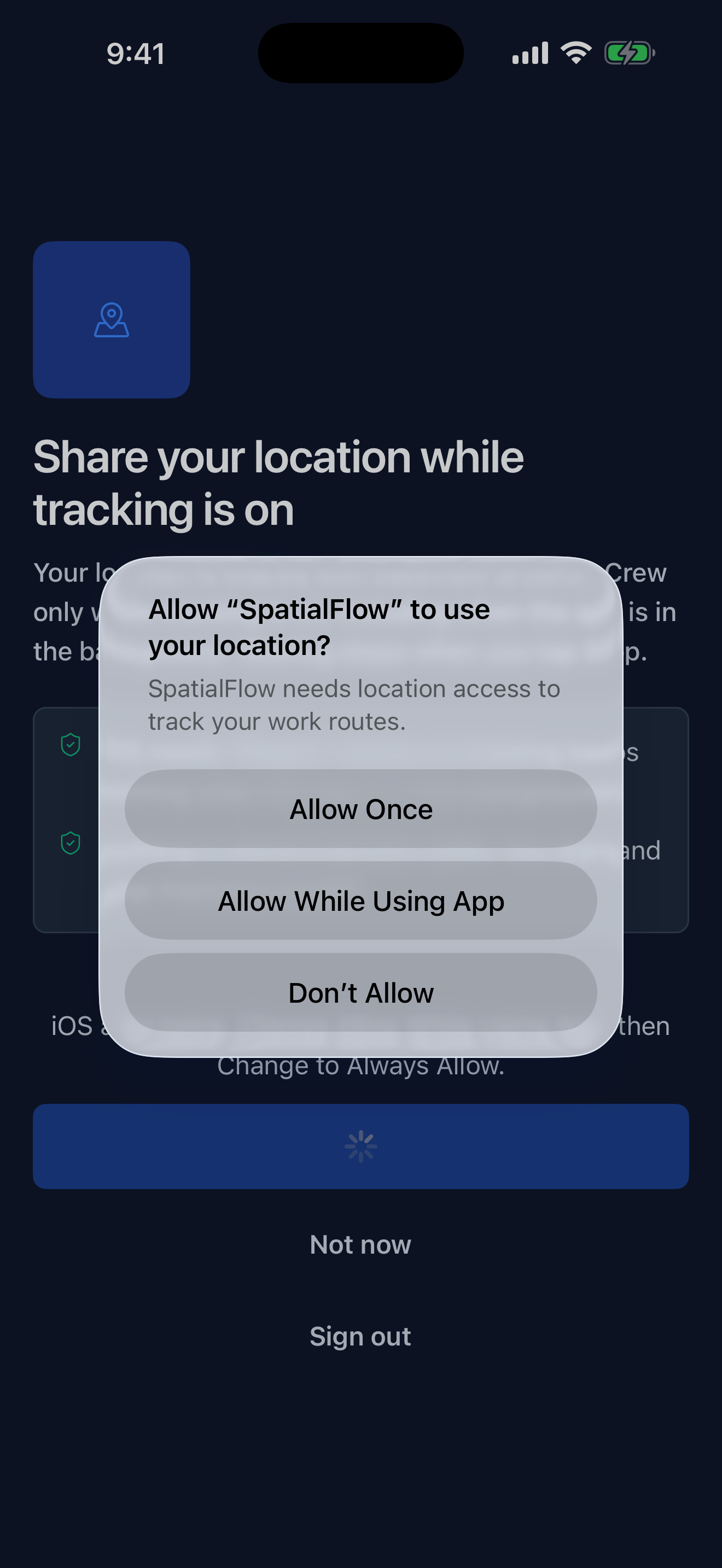
iPhone: two prompts. First, allow location at all: choose Allow While Using App (SpatialFlow's own screen tells you this ahead of time, since iOS otherwise gives no warning). Then a second prompt to upgrade to Always: choose Change to Always Allow. SpatialFlow needs Always to keep tracking while the app is in the background or your screen is off, and it won't let you past this screen with While Using.
-
Android: first SpatialFlow's own Background Location Access dialog explains that it collects your location while tracking is on, even when the app is closed; tap Accept. Android then asks for location access; allow it, and choose Allow all the time when Android asks again. On Android 13 and newer, SpatialFlow's Tracking Notification dialog comes next. It explains the persistent notification shown while tracking is on; tap Continue, then allow notifications if Android asks. Last, SpatialFlow may show Keep tracking running, one time only. Tap Battery settings and exempt SpatialFlow from battery optimization; otherwise Android may pause tracking to save power partway through a shift. Some phones also offer Power manager for the maker's own battery settings, and Not now skips the step.
If you picked While Using on iPhone, or didn't allow location all the time on Android, SpatialFlow's permission screen stays up and lists the steps to fix it. Tap Open Settings, choose Location > Always on iPhone or Location > Permissions > Allow all the time on Android, then come back to SpatialFlow. On Android you can tap Continue with foreground only instead. The same screen and Open Settings button appear if you refuse location altogether.
If you're already past that screen, open Settings in SpatialFlow. Location under PERMISSIONS shows Limited when it is only While Using on iPhone or foreground only on Android. Tap Enable to open the phone's settings for SpatialFlow and make the same change. On iPhone it first shows the steps, with an Open Settings button.
On Android, if you miss the battery-optimization prompt, find it again under Settings > Background tracking, which says Allowed or Needs setup. Some budget Android brands (Xiaomi, Tecno, Infinix, Huawei, and Samsung's power saving mode) kill background apps more aggressively than that exemption covers. If it says Still needs setup or tracking still stops, tap the row again. The app lists the manual steps: in the phone's Settings, open Apps, SpatialFlow, Battery, and choose Unrestricted. On some phones the row opens the OS's full battery optimization list instead of just SpatialFlow; if so, switch its filter to All apps, find SpatialFlow, and choose Don't optimize.
Start, pause, and end your shift
My Day and the Tracking tab both keep the shift controls at the bottom of the screen. The status card above them shows the shift state:
- Tracking off: tap Start tracking to begin sharing your location.
- Tracking on: you're live. Tap Pause to stop sharing temporarily without ending your shift (useful for a break), or Stop to end it.
- Tracking paused: tap Resume to continue, or Stop to end the shift from here too.
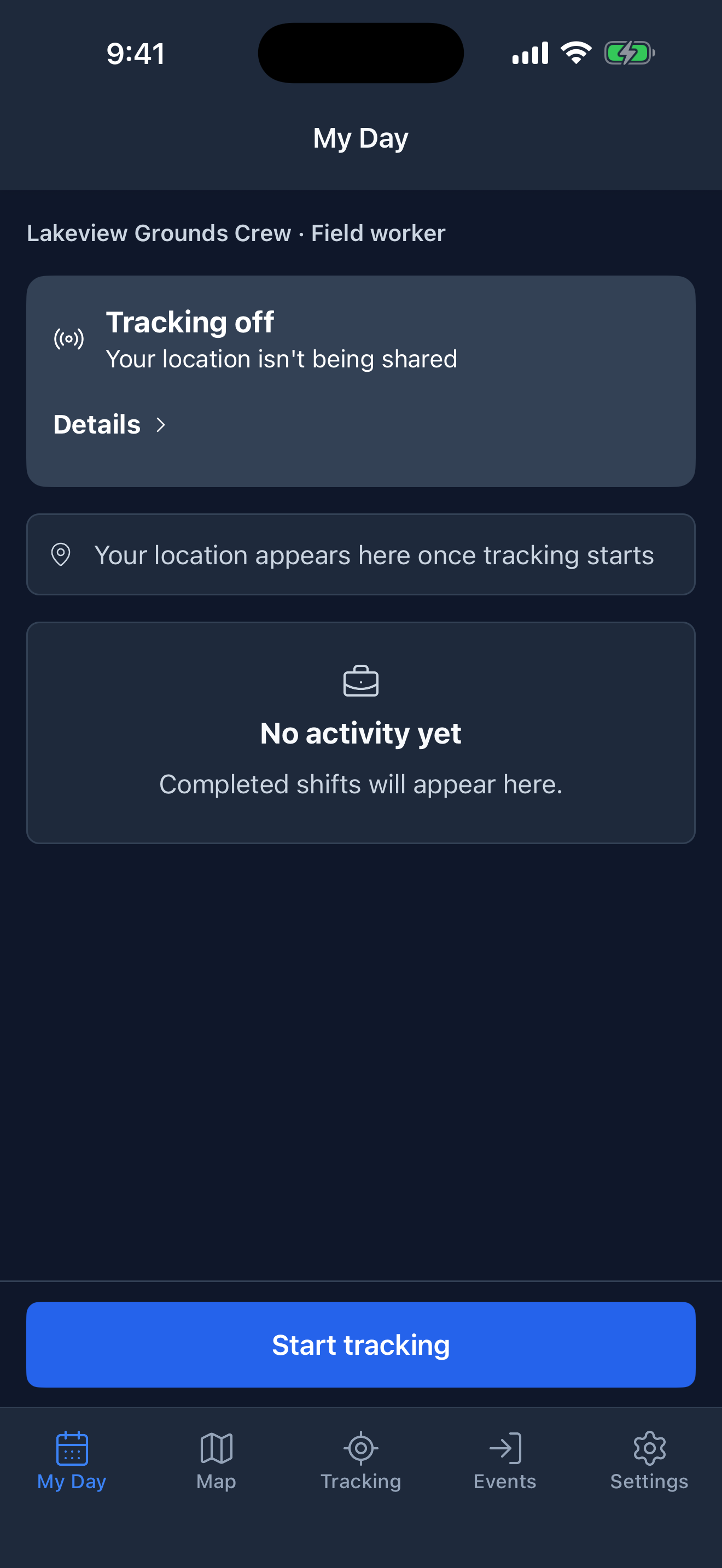
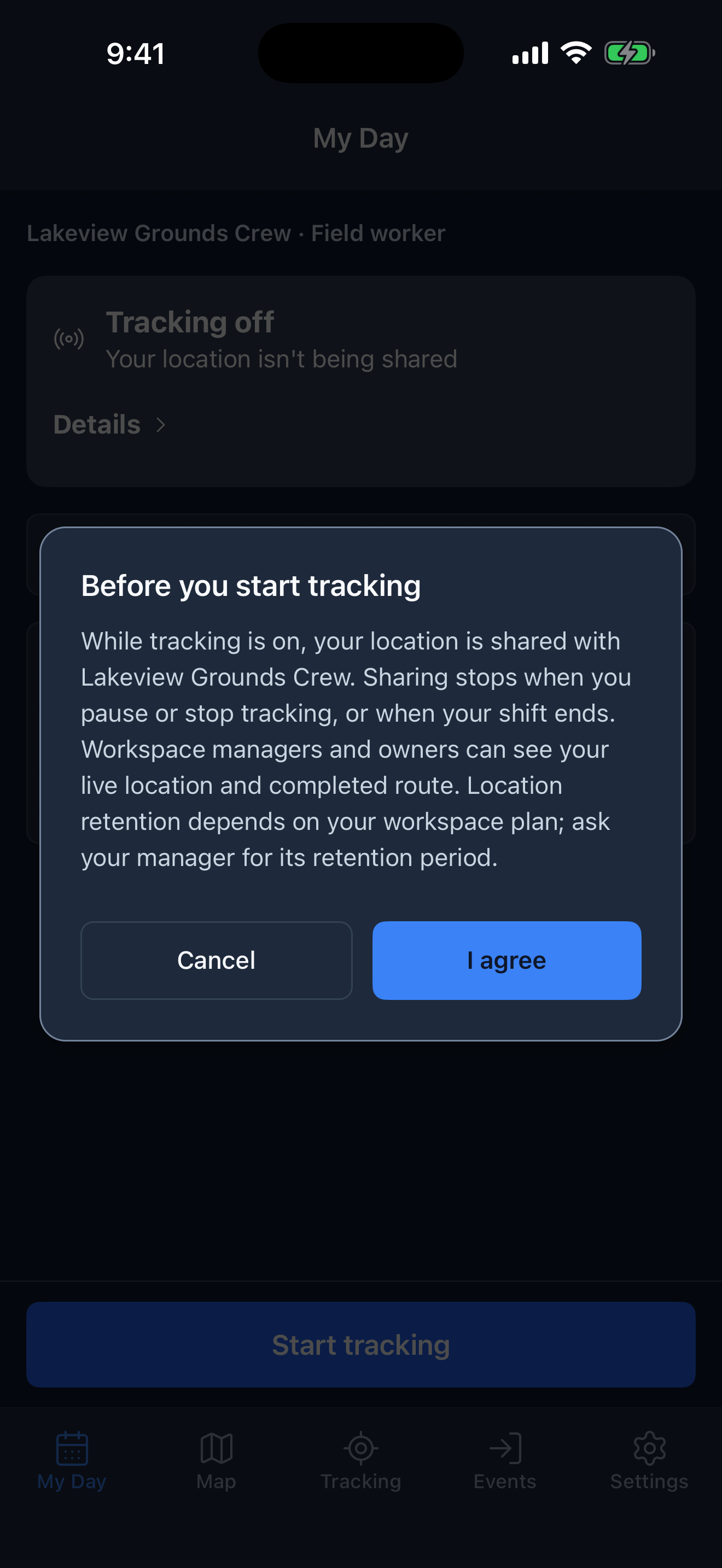
The first time you tap Start tracking in a workspace, a dialog titled Before you start tracking explains what sharing means for that workspace: who can see your live position and finished routes, and that retention depends on your employer's plan. Read it and tap I agree to continue, or Cancel to back out. You won't see it again in that workspace, unless SpatialFlow updates the disclosure.
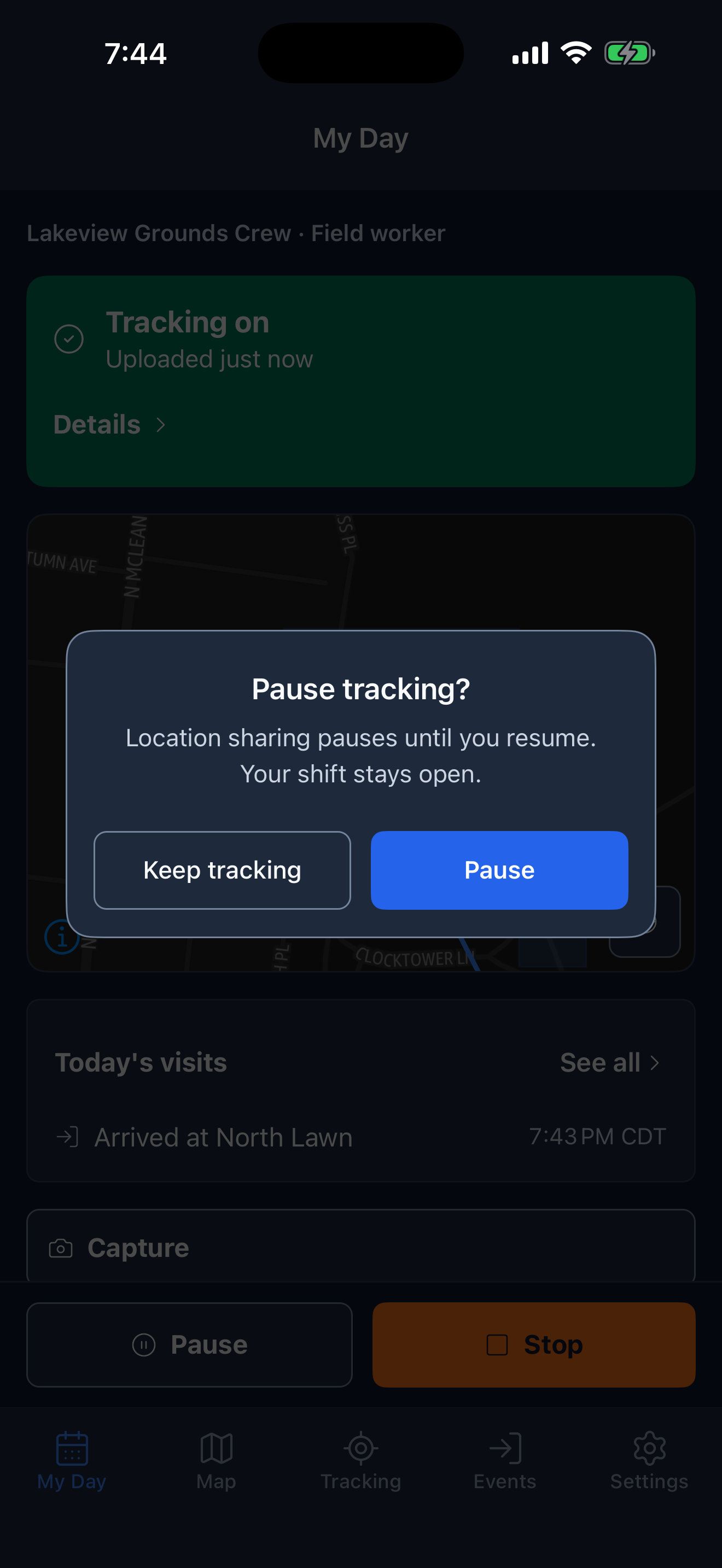
Both Pause and Stop ask you to confirm before they take effect, so a stray tap can't cut off sharing mid-shift. Pausing shows Pause tracking?, explaining that location sharing pauses until you resume and your shift stays open; tap Pause to confirm or Keep tracking to cancel.
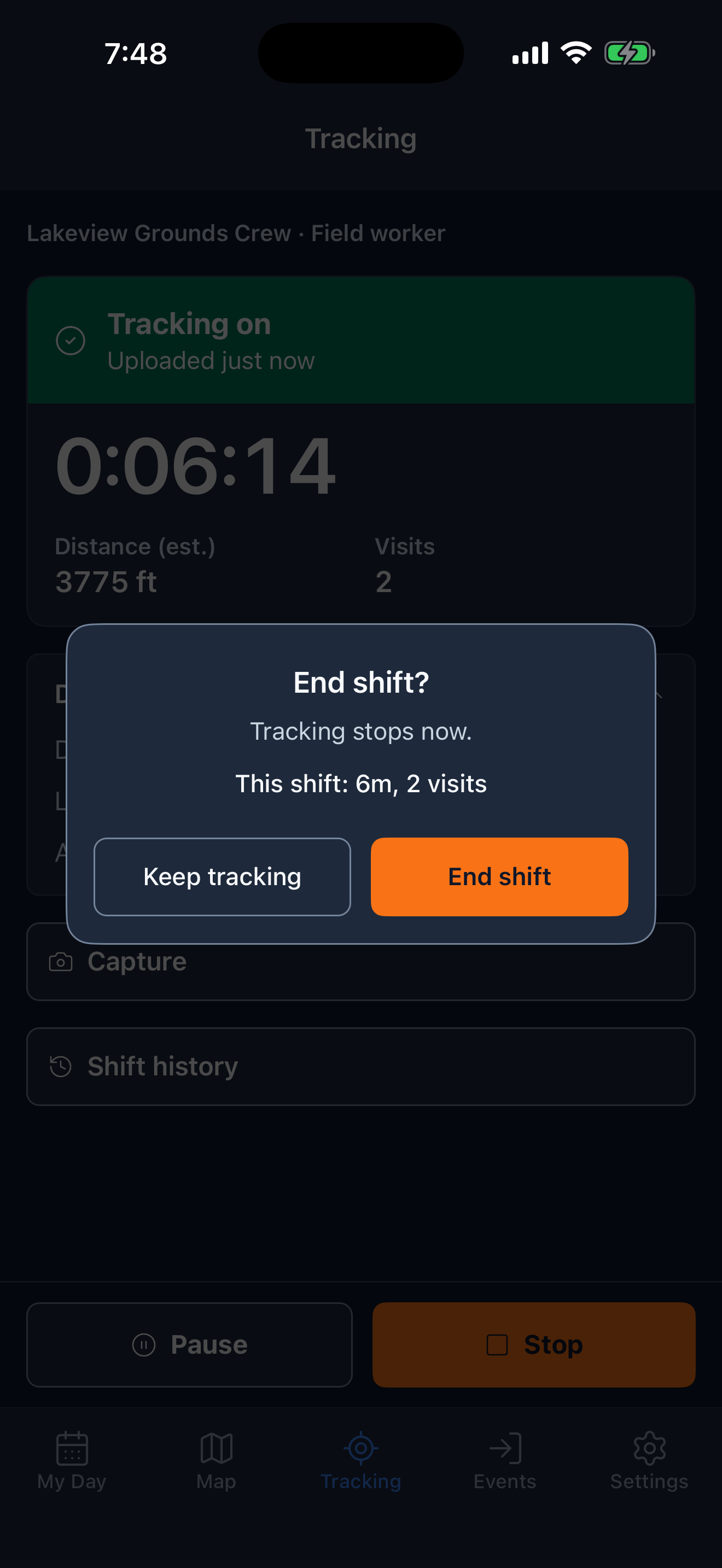
Stopping shows End shift?, explaining that tracking stops now, with how long the shift has run and how many visits it logged; tap End shift to confirm or Keep tracking to cancel. If locations are still waiting to upload, it says how many and that the app will try to send them before your shift ends. Stop ends the shift; it does not delete its history.
Add a note or photo
While a shift is in progress, running or paused, My Day and the Tracking tab show a Capture button. Tap it to choose: Add note for a quick shift note, Pick from library to attach an existing photo, or Open camera to take one now. Add note opens a note box with an Add a photo link under it. Whatever you add belongs to today's shift, not to a specific stop.
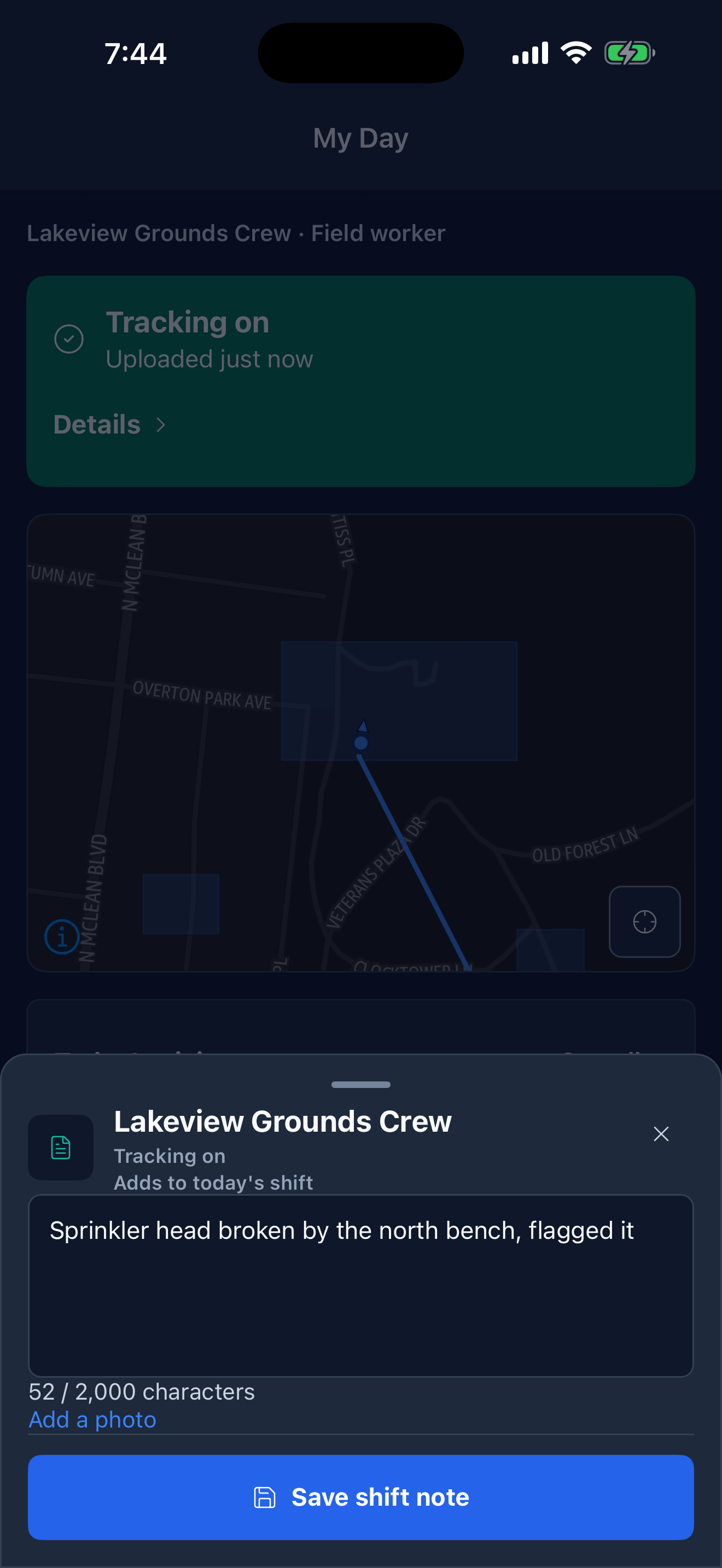
A note isn't saved until you tap Save shift note. Closing the sheet first asks Discard unsaved note?: Discard throws the note away and Keep editing goes back to it. The note box starts with the note you already saved for this shift, and saving replaces it. A photo uploads as soon as you pick or take it, and Done closes the sheet. Notes and photos need a data connection. Unlike locations, the app doesn't keep them on the phone to send later; without a connection you get an error, and photos offer Retry.
A note always goes to the active shift, or fails with an error. A photo is linked to the shift only if the app can look up your active shift when it uploads. If it can't, the photo still uploads and the sheet still says Photo attached, but the photo isn't linked to the shift. A Shift ended warning appears if the shift had already ended. After a connection or server error in that lookup, nothing warns you.
"Last upload" and uploads
While tracking is on, the status card on My Day and the Tracking tab, and the strip at the top of the Map, Events and Settings tabs, normally says Tracking on. If something needs your attention it says so instead, for example Uploads behind (nothing has uploaded, or the last upload is 15 minutes old or more), Not recording with a reason such as location access being off or nothing arriving for a while, or You're offline. When location access is the reason, the fix is the permission, so there is no Restart button; for other reasons there is one. While locations are saved on the phone waiting to send, the card says how many. When uploads have failed, it offers Review.
Tap Details on My Day to reach the Tracking tab, then tap Details there to open a list that includes Last upload, the time of the last confirmed upload; scroll if you cannot see it. If it says None yet, the app has no confirmed upload to show. Tracking on alone does not confirm that your manager can see a recent position. Wait for a recent upload before relying on the route, and check your location permission and data connection if it doesn't arrive.
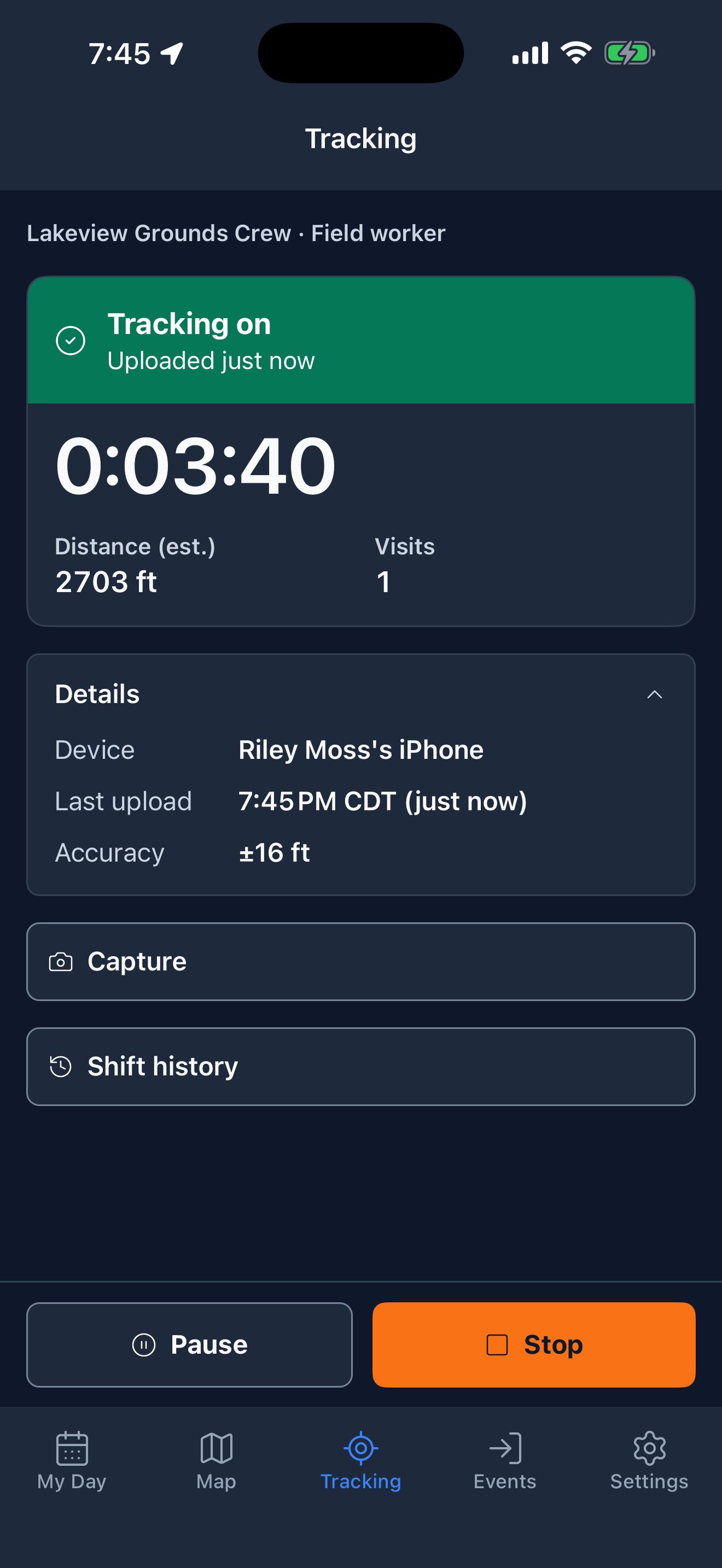
Once uploads begin, the time should reset as new fixes arrive. If it keeps climbing while you are moving, check GPS, permissions, and connectivity. Without a data connection, the app buffers location fixes that the phone can still obtain and uploads them after reconnecting, but only while tracking is on. It cannot record fixes when the OS stops it or location permission is unavailable. It holds up to a day of unsynced points, or 10,000 of them, whichever comes first, so a long offline drive can age out or evict the earliest points.
Starting, pausing, resuming and stopping all need a connection. With no network at all, the app says there's no internet connection and leaves tracking as it was, so a shift you try to stop offline keeps recording. On a network with no working internet, such as Wi-Fi with nothing behind it, a stop can instead end recording on the phone while the shift stays open on the server. Either way, once you're back online, check that the status card reads Tracking off, and tap Stop again if it doesn't. If you stop a shift with locations still waiting to send, they stay on the phone and upload the next time you start tracking there, unless they are more than a day old by then.
If it doesn't clear, open Settings and tap the row under UPLOADS to open Uploads. The row's label changes with what's waiting: Nothing waiting, a count like 3 waiting, or 2 couldn't upload. Fixes that failed to upload are listed there; tap Retry all (2) to requeue every one of them at once (there's no way to retry a single fix on its own). The button only appears while something has failed, and it only puts the fixes back in line: they send while tracking is on. Nothing waiting to upload means nothing is queued on the phone. It doesn't prove every fix arrived: fixes more than a day old, and the oldest ones once the phone's store is full, are dropped without uploading. Fixes that are only waiting, for example while you have no connection, show in the count at the top of the sheet but not in the list.
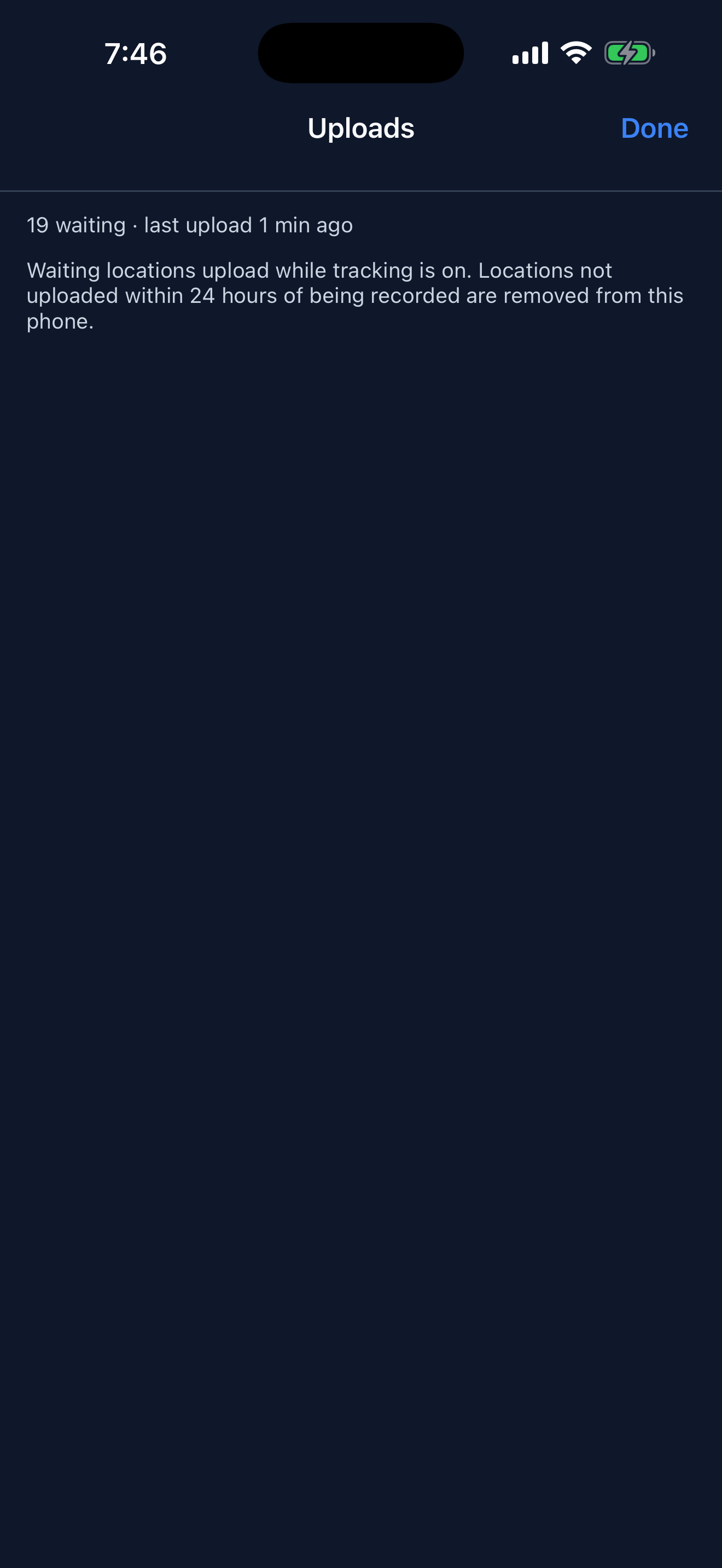
When uploads have failed, Review opens Uploads directly. It appears on the status card, in the banner at the top of the screen, and in the banner on the Shift history screen, which the Shift history button on the Tracking tab opens.
After a restart
On Android, reopen SpatialFlow immediately after every restart or battery swap. Background recovery may not resume recording until you open the app. Check the Tracking tab and tap Start tracking if the status card says Tracking off. Wait for Last upload to show a recent time before relying on the route again.
On an iPhone, open the app after a restart and look at the Tracking tab. If it says Tracking off, tap Start tracking again.
Switching workspaces
If your email is on more than one SpatialFlow workspace (say, two employers), log out and back in. SpatialFlow will show Choose where you are working so you can pick which workspace this shift belongs to. There's no need to reinstall or use a different account: one login, one workspace at a time.
Logging out, with Log out in Settings, stops tracking on this phone and tries to end any open shift. If the phone is offline or that request fails, you are still logged out but the shift stays open until SpatialFlow closes it after a day, so stop your shift first and check that it reads Tracking off. Picking a different workspace from the one the phone was last used in also clears any locations still waiting to upload for the old one, so make sure Uploads shows nothing waiting before you switch.
What we collect and who sees it
Your phone records where it is only while tracking is on. The app says so on the login screen: "We only track your location when tracking is on." Pause a shift or stop it and the recording stops with it. There is no background collection outside a shift. While your shift is paused, SpatialFlow also refuses any location sent for your device, from the app or from another system connected to your workspace, and a location recorded during a pause is refused when it arrives later too. The app does not read your messages or your contacts, and it never goes through your photos on its own. Choosing a photo from your library or taking one with the camera uploads it to your workspace as soon as you pick it; tap Done to close the sheet. You do not need to add a note for that upload to happen.
Where it goes: your employer's SpatialFlow workspace. The people who run that workspace see where you are on their live map while you are tracking, and can look back at the route from a finished shift. They can also set up alerts that forward your position to email, Slack, a text message, or another system they use, so if you want to know exactly who gets told what, ask your manager what is switched on.
How long it is kept depends on the plan your employer is on. On the smallest plan the individual positions are deleted after 30 days. What stays after that is a simplified line of each finished shift's route, plus the shift record itself: when it started, when it ended, and how far you travelled. Ask your manager which plan you are on if you want the exact number.
Troubleshooting
Not showing on the map? Open the app and check the Tracking tab; if the status card says Tracking off, tap Start tracking. If a shift goes a day or more with nothing at all reaching the server, such as a long flight in airplane mode or the phone being off, SpatialFlow closes it for you. After a flight, power-off, or restart, reopen the app and check the Tracking tab. If it says Tracking off, tap Start tracking; reopening the app alone does not guarantee tracking has resumed. Also check that location permission is set to Always on iPhone or Allow all the time on Android, and on Android that battery optimization is off for SpatialFlow (see Allow location access above).
Location fixes aren't uploading. Open Settings, tap the row under UPLOADS, and retry any failed entries with Retry all; they send while tracking is on. If nothing is waiting there but "Last upload" keeps growing, check you still have a data connection and that location permission is still set to Always or Allow all the time (the Settings app on iPhone, or the SpatialFlow app's permission page on Android). If the app loses location access during a shift, a banner at the top says Location permission denied and offers Open Settings.
You're in the wrong workspace. Log out and back in; if your account belongs to more than one workspace, you'll get the workspace picker again and can choose the right one. Let waiting locations upload first, because switching workspaces clears them (see Switching workspaces).
Your invite link says it's already used. Your account exists. Tap Go to sign in on that screen and sign in with the same email instead of using the old link. If you never chose a password, tap Set a password there first to open the website's reset page.
Your invite link says it's expired, cancelled or replaced by a newer one. Check your email for the latest invitation, or ask your manager to create a new invitation. Resend only works while an invitation is still pending, so the old one cannot be revived.
Your invite link says "Too many attempts". There have been too many attempts from you or your network. The page or app says how long to wait; the limit resets within an hour.