Roles, audit log and SSO
Roles
Every member of a workspace has one of three roles:
| Role | What they can do |
|---|---|
| Owner | Everything a manager can, plus the plan and billing, single sign-on, units and timezone, support contacts, deleting location data, and changing roles or removing members |
| Manager | Invite field workers and managers, and run the workspace day to day: devices, geofences, workflows, webhooks, reports, the audit log and the map home area |
| Field worker | Share their own location from the SpatialFlow app during a shift. In the dashboard they see only their own devices and shifts |
Only owners see the controls to change a member's role or remove them, under Team Members. Managers can't invite owners.
A workspace always keeps at least one owner. The last one is marked Last owner and can't be demoted or removed, so to hand a workspace over, make the new person an owner first.
Audit log
The audit log records who created, changed or deleted what: geofences, devices, workflows, webhooks, members, invitations, integrations and the workspace itself. Owners and managers can open it.
The only way in is the command palette. Press Ctrl+K, or Cmd+K on a Mac, type Audit Log, and press Enter.
Each entry shows the time, the person, the action, the resource and a description. Filter by action or resource, or search. Entries are kept for 90 days unless your SpatialFlow operator sets a different period.
Single sign-on
On the Business and Enterprise plans, the owner can have members sign in through your identity provider with SAML. Open Settings > Workspace and find Enterprise SSO:
- Enter the IdP Entity ID, SSO URL and X.509 Certificate from your identity provider.
- Enter the Covered Email Domain, for example your company's domain. People whose email address is at that domain are sent to your identity provider to sign in.
- Click Save. Download SP Metadata then gives your identity provider the details it needs about SpatialFlow.
Single sign-on starts working only after SpatialFlow has confirmed that your organization controls the domain. Email support@spatialflow.io to complete that step. Until then, Enable SSO for this workspace doesn't stay on.
On the Free and Pro plans, the section says single sign-on needs Business or Enterprise, with an Upgrade Plan link.
Delete location data
The owner can permanently delete location and event records under Settings > Privacy. Choose what to delete: the whole Workspace, named Devices, or a Date range. Preview Deletion shows what would be deleted without deleting anything. To go ahead, type DELETE and click Execute Deletion. It can't be undone.
API keys
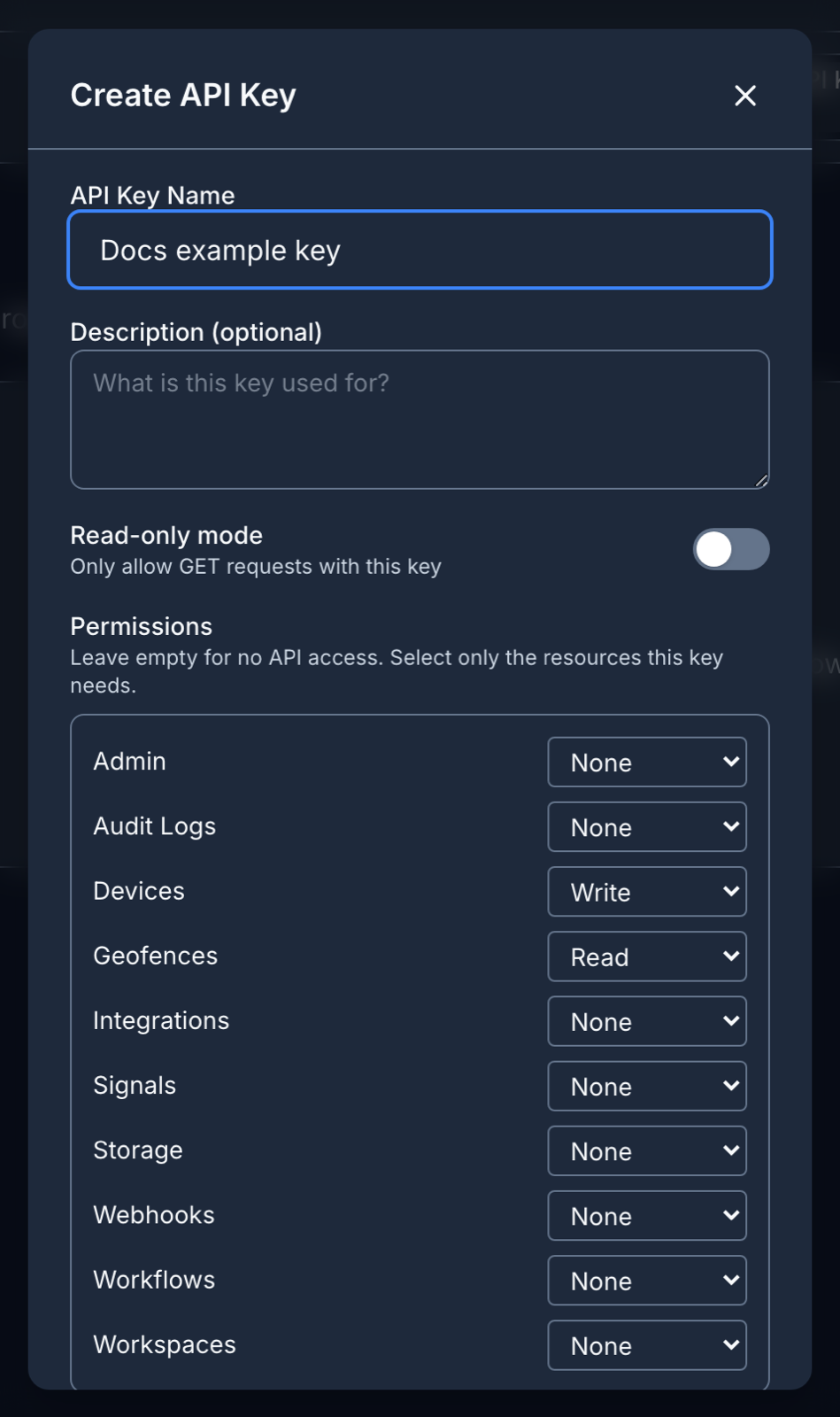
API keys let other systems use SpatialFlow, for example a dispatch system that creates geofences. Each person creates their own under Settings > API Keys, up to five. A new key can't reach anything until you give it permissions, and SpatialFlow shows the key only once, when you create it. See Authentication in the developer docs.