Overview and incidents
The Overview is the first page you see after signing in. It answers two questions: is everyone who should be reporting reporting, and does anything need you right now?
The Overview
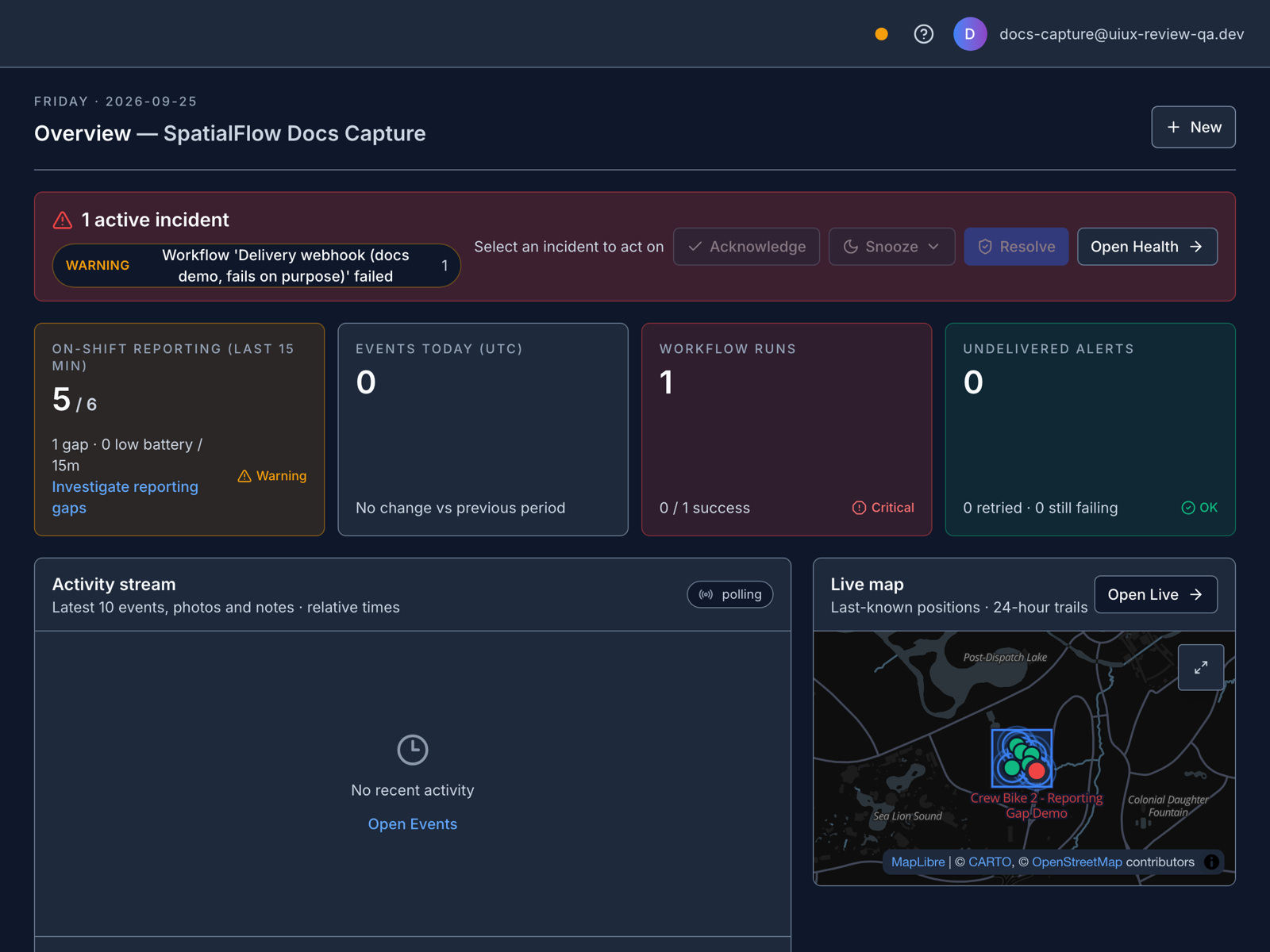
Four cards run across the top:
| Card | What it counts |
|---|---|
| On-shift reporting (last 15 min) | Devices on shift that reported in the last 15 minutes, out of all devices on shift, plus how many have low batteries |
| Events today (UTC) | Geofence events recorded since midnight UTC |
| Workflow runs | How many workflow runs happened and how many succeeded |
| Undelivered alerts | Webhook deliveries that failed every retry, split into those retried since and those still failing |
Below them are your open incidents, a small Live map, and the Activity stream of recent arrivals, departures and other events. New in the header starts a device, a workflow, a geofence, or an invitation.
Until the workspace has a workflow of its own, the Overview also shows a two-step setup guide. Invite your team is the first step. The second is See your first alert work for the owner who signed up, which fires the example alert to their inbox, and Set up your first alert for everyone else. The guide goes away when you create a workflow or dismiss it.
Field workers who sign in to the dashboard see You are set up instead, with a reminder to start shifts from the app on their phone.
Follow up a reporting gap
When a device on shift hasn't reported for 15 minutes, the reporting card counts it as a gap and shows Investigate reporting gaps. That link opens the live map with only those devices listed, each with how long ago it last reported.
A gap isn't proof of a problem. A phone that sits still sends fewer updates, and a phone out of signal holds its locations and uploads them later. Start with the person: ask whether they're still working and whether the app still shows tracking on.
Incidents
The Alerts page lists incidents: problems SpatialFlow notices on its own, separate from the alerts your workflows send. The Alerts item in the sidebar shows how many are open. SpatialFlow opens an incident when:
- A device appears stuck, or a shift runs overdue, for devices watched by a Device Stuck or Shift Overdue workflow.
- Webhook deliveries pile up after failing every retry.
- A connected integration, such as Slack, stops working.
- A live workflow run fails.
A device that goes quiet without one of those workflows watching it doesn't open an incident, so the reporting card on the Overview is where to catch it.
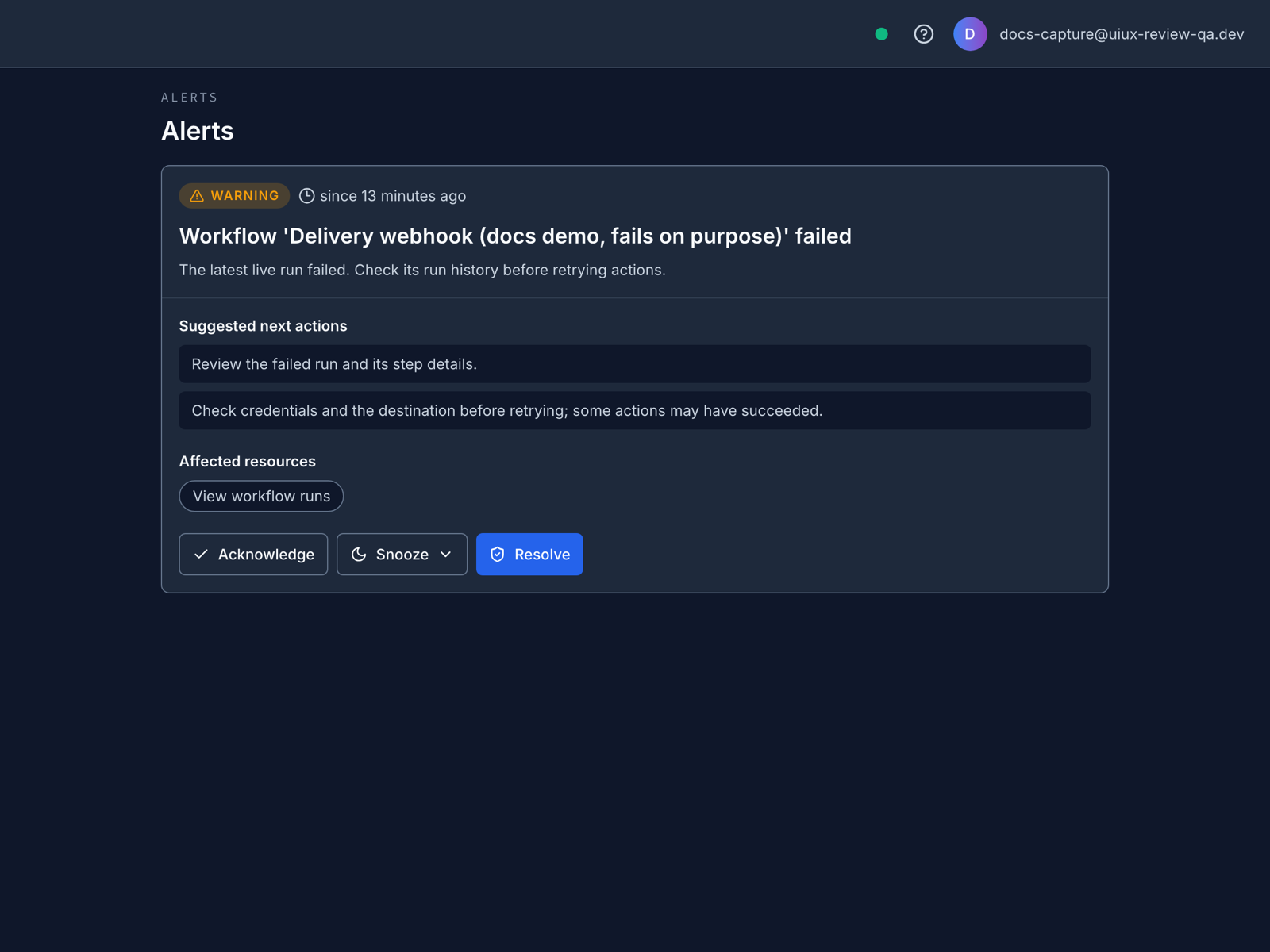
Select an incident to see what happened, the suggested next steps, and the affected devices, geofences or workflows. From there you can:
- Acknowledge it, so the team knows someone is on it.
- Snooze it with Snooze 1 hour, Snooze 4 hours or Snooze until tomorrow.
- Resolve it once it's handled.
Failed workflow runs
When a live workflow run fails, the incident links to the workflow's runs with View workflow runs. Look at the failed step before you retry: earlier actions in the run may already have gone out. The incident itself doesn't send email or Slack messages, retry the run, or copy the provider's error.
The next successful live run resolves the incident, and a new failure after that opens it again. Rechecks keep your acknowledgement and snooze. SpatialFlow looks back seven days for failed runs, and an open incident stays open past that until a later run succeeds or someone resolves it. Tests, previews and the example workflow never open one.
Alert health
Alert health in the sidebar shows whether locations are flowing through to alerts: how fast locations are processed, webhook errors in the last 24 hours, the state of each integration, and the dead letter queue of deliveries that failed every retry. Use it when an alert you expected never arrived.