Invite your team
Someone shows up on the map after three things happen: you invite them, they accept the invitation in the SpatialFlow app on their phone, and they start tracking. You can only do the first one from the dashboard. Plan to walk the first person through the rest, then let them show the others.
Send invitations
Open Team in the sidebar. It's the same page as Settings > Workspace. Owners and managers see an Invite Member button in the Team Members section.
- Click Invite Member.
- Paste one email address or many, separated by commas, spaces or new lines. The dialog counts the valid addresses as you type.
- Choose a Role for everyone in this batch: Field worker, Manager or Owner.
- Click Send Invitation.
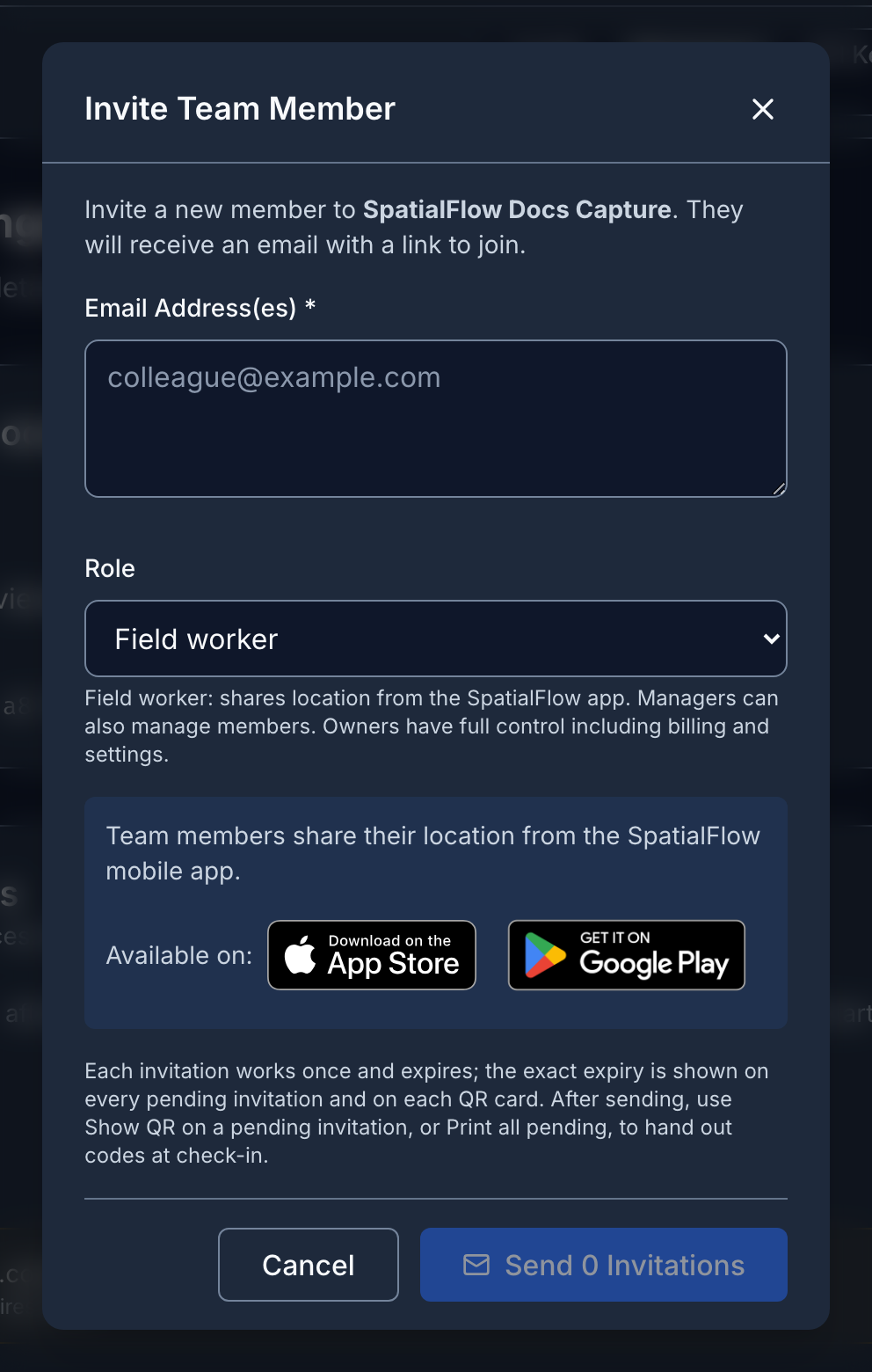
Each person gets an email with a link. Each person sending invitations can send 100 an hour and resend 10 an hour. If you hit the limit, the dialog keeps the unsent addresses so you can send them later.
Pick the role by what the person does:
| Role | Who it's for |
|---|---|
| Field worker | People who share their location from the SpatialFlow app during a shift |
| Manager | People who run the team: invitations, devices, geofences, alerts and reports |
| Owner | People who also handle billing, the plan, single sign-on and workspace-wide settings |
Managers can't invite owners. Only an owner can change someone's role or remove them from the workspace later. See Roles, audit log and SSO for everything each role can do.
QR codes and the print sheet
Every invitation also works as a QR code, which helps at a check-in table where people would rather not type an email address on their phone. Find the invitation under Pending Invitations and open its menu:
- Show QR shows a code for that one invitation, with the role and expiry under it.
- Resend invitation email sends a new link and restarts the expiry.
- Extend expiry moves the expiry later without sending anything.
- Revoke invitation stops the link from working right away.

For a crew, click Print all pending above the list. It lays out one card per pending invitation, several to a page, for people to scan with their phone camera. Each code works once.
Print right after you send. The scannable link exists only in the browser tab that sent or resent the invitation, so if you open the sheet later, each card reads "No scannable code in this tab". Resend all missing reissues those invitations and fills in the codes. It handles up to 200 cards at a time, 10 times an hour. The menu shows Show QR (resend first) for the same reason.

When invitations expire
Invitations last 72 hours unless your SpatialFlow operator has set a different time. The dialog and each card show the exact expiry. Send invitations close enough to check-in that people use them in time.
An expired invitation drops off Pending Invitations, so there's nothing left to resend or extend, and you have to invite that person again. Use Extend expiry before that happens. Resend all missing only refreshes invitations that haven't expired.
What the invited person sees
On a phone with the SpatialFlow app installed, the email link or the QR code opens the app to a screen with your workspace name and their role. Someone new to SpatialFlow continues without choosing a password. Someone who already has an account signs in with it. The SpatialFlow app guide covers their side step by step.
On a phone without the app, the link opens a web page instead. Field workers see "Install the app to join" with App Store and Google Play buttons, and Android phones also show an Open in App banner. Opening the page doesn't use up the invitation, so they can install the app and open the link again. Managers and owners can accept on the web page and use the dashboard straight away.
Check who has joined
Everyone who accepted appears under Team Members, with a line that says whether their phone is tracking:
| What you see | What it means |
|---|---|
| Joined, not tracking yet | They accepted, but their phone hasn't registered with SpatialFlow. They probably haven't signed in to the app yet. |
| Not tracking, no location sent yet | Their phone registered but hasn't sent a location. |
| Not tracking, last seen 2 hours ago | Their phone has reported before, but not in the last 10 minutes of an active shift. |
| Tracking, last seen 1 minute ago | They're on shift and their phone reported in the last 10 minutes. |
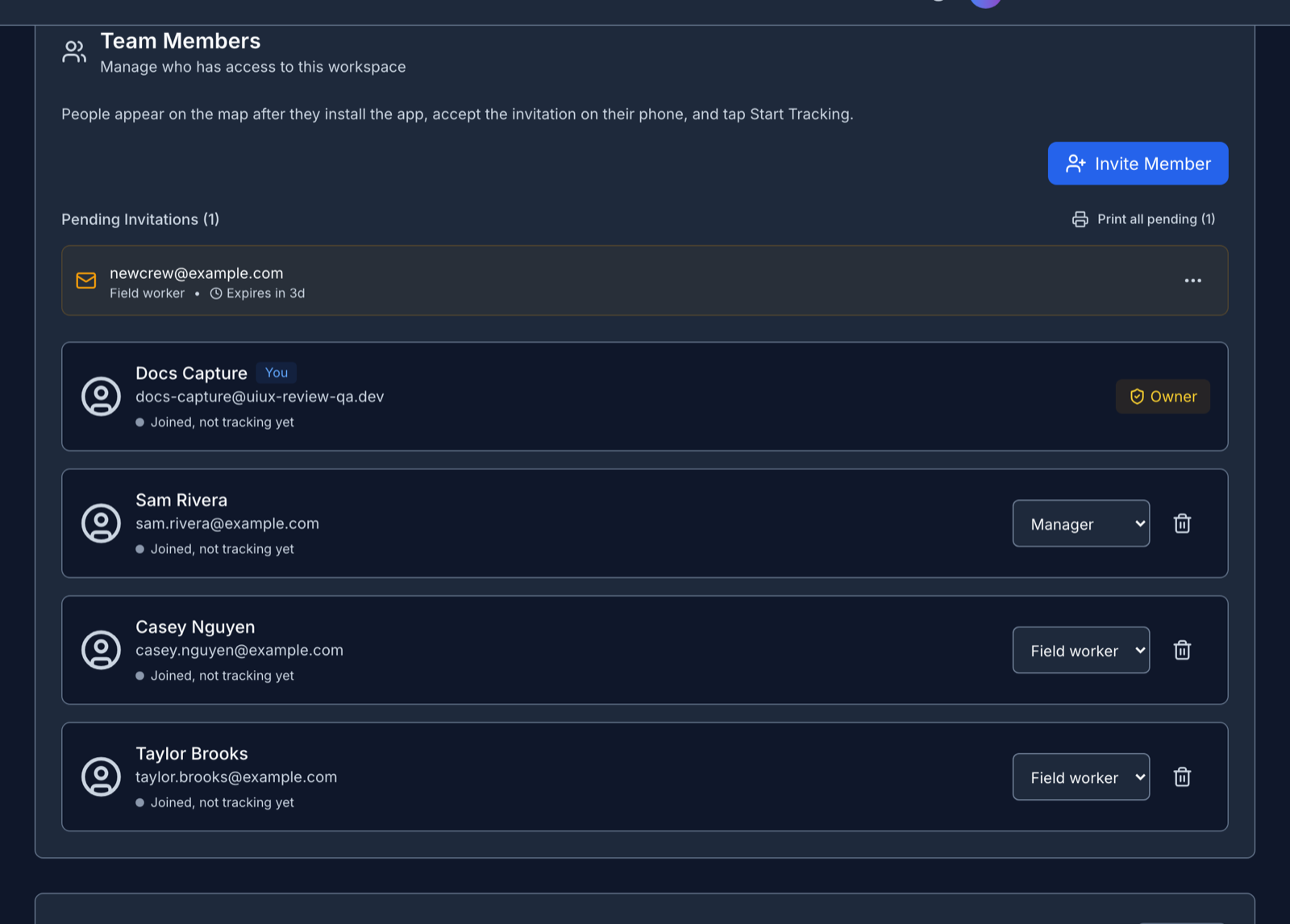
The line updates every minute while the page is open. Field workers see only their own.
Invited but not on the map
"I invited people, so why can't I see them?" is the usual first-day question. Work down this list. Each step is a different problem with a different fix.
- They're still under Pending Invitations. Nobody has accepted the invitation yet. Maybe nobody opened it, or they got stuck installing the app or signing in. Ask before you resend. Handing over the QR code in person is the fastest way to find out.
- Team Members says they joined but aren't tracking yet. Their phone registers the first time they open the app signed in. If they have, registration may have been refused because the workspace reached its device limit. Compare Settings > Usage with your plan before you chase the person.
- Their device is under No location on the live map. Nothing has reached SpatialFlow from that phone. Usually they haven't started tracking. A shift that did start also lands here while location permission is off, the phone has no GPS fix yet, or its first locations are still waiting to upload. Ask them to check all three.
- Their device shows No recent location. It reported before, but not in the last hour. Usually the shift is simply over: ending a shift leaves the last position on the map, and the badge only says how old it is. If they should be on shift, the likely causes are location permission set to something other than Always, or Android battery saving closing the app. Send them Allow location access.
For people who should be on shift right now, the Overview's reporting check is faster. See Overview and incidents.
A device without a person
Invitations are for people. Each person installs the app and signs in with their own account, and their phone registers itself.
For a vehicle tracker, a device that sends locations through the API, or a shared device someone else sets up, open Devices and click Add Device instead. You'll need a Device ID from the tracker or your own system, and a Display Name.
Find people by name
Workspaces don't have member tags. The name on the map comes from the device, so once someone's phone has registered, open it under Devices and give it a name that starts with a shared prefix, for example "Bus A - Jane Doe". The live map's device list and the roster both search by name, so the prefix works as a filter.