Live map and roll call
The Live map shows where each device last reported and how long ago. Use it to answer "who is on site right now?" and to check on one person without calling them.
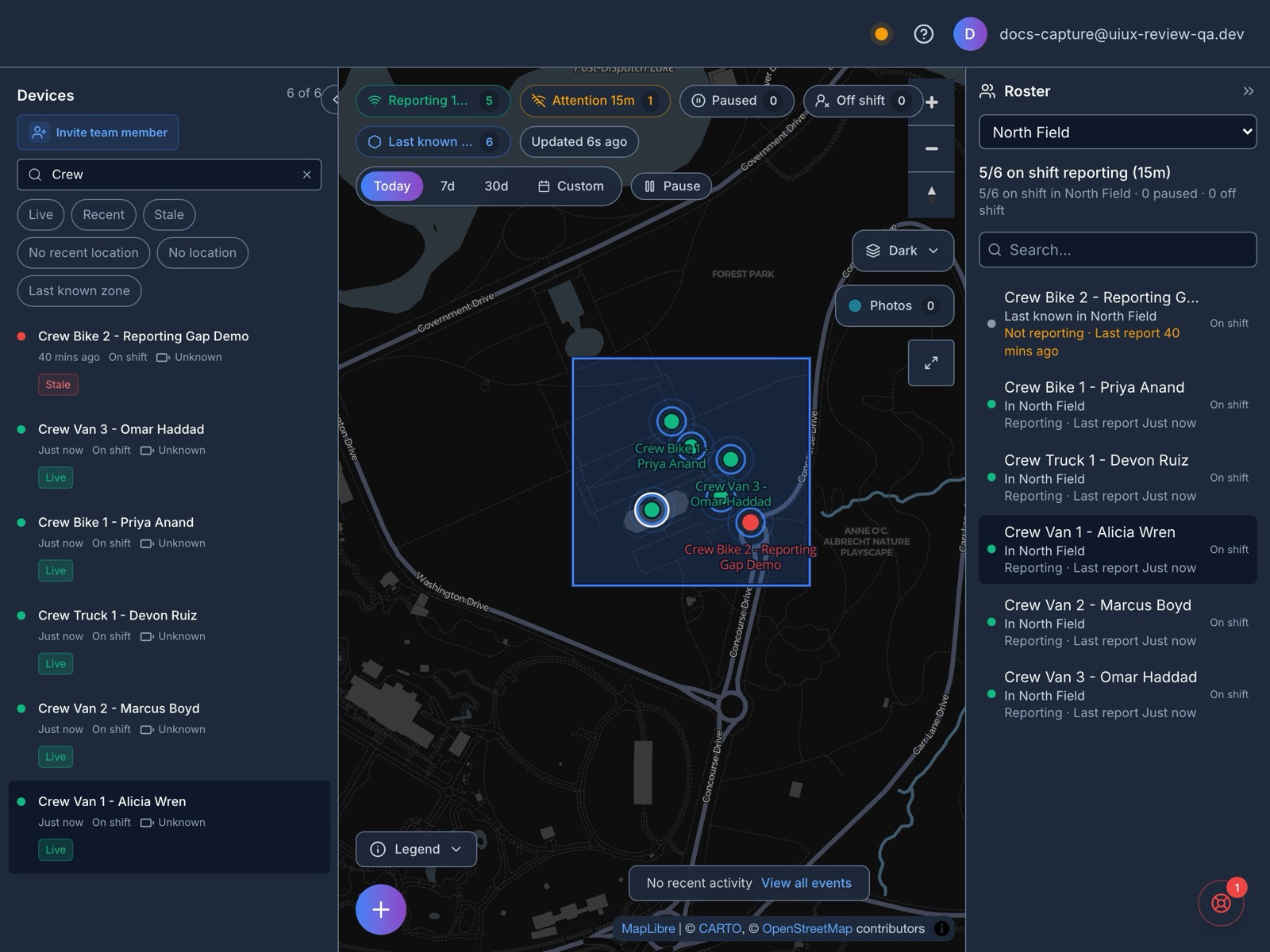
On a computer the page has three parts: the device list on the left, the map, and the roster on the right. Screens narrower than 1280 pixels start with the roster closed. Open it with the people icon at the right edge of the page, and it slides over the map. The counters above the map show how many devices on shift reported in the last 15 minutes, how many need attention, and how many are paused or off shift.
The page checks for new locations every 30 seconds. Pause above the map stops that while you look at something, and Resume starts it again.
How old is a location
Every device carries a badge for how long ago it last reported:
| Badge | Last report |
|---|---|
| Live | Within the last 2 minutes |
| Recent | 2 to 10 minutes ago |
| Stale | 10 to 60 minutes ago |
| No recent location | More than an hour ago |
| No location | Never. The device hasn't sent a position yet |
The filters above the device list use the same names. Pick one or more to narrow the list, or Last known zone to list only devices whose last position was inside a geofence. Search devices finds a device by name.
Each row also says whether the device is On shift, Paused or Off shift, and shows its battery. While a device is inside a geofence, a badge says how long it has been there.
A phone that isn't moving reports less often, so someone standing still can drift to Recent or Stale while they work normally. Judge by the shift status and the age together: an old location during a shift is worth a look, while after the shift it's expected.
On the map, a small arrow ahead of a device's dot points the way it's heading, when the phone reports a direction and the location is less than 10 minutes old.
Roll call
Pick a geofence at the top of the roster. The header reads like "4/5 on shift reporting (15m)": four of the five devices on shift reported in the last 15 minutes. The line under it counts how many devices on shift are in the geofence right now, and how many are paused or off shift. Example devices never count.
Each person has one of these:
| Roster status | What it means |
|---|---|
| In geofence name | Reported from inside the geofence in the last 2 minutes |
| Last known in geofence name | Their last position was inside, but it's more than 2 minutes old |
| Outside | Reported from outside the geofence in the last 2 minutes |
| Last known outside | Their last position was outside, and it's more than 2 minutes old |
| No recent location | There's no position to compare, usually because the device has never reported one |
An old position never counts as present. Someone who has been standing still on site for a while often shows Last known in the geofence, so read the line under their name: Reporting means they're on shift and reported in the last 15 minutes. People on shift who aren't reporting sort to the top.
If your workspace has no geofences yet, the roster still shows who is reporting, with a link to create one.
Follow one device
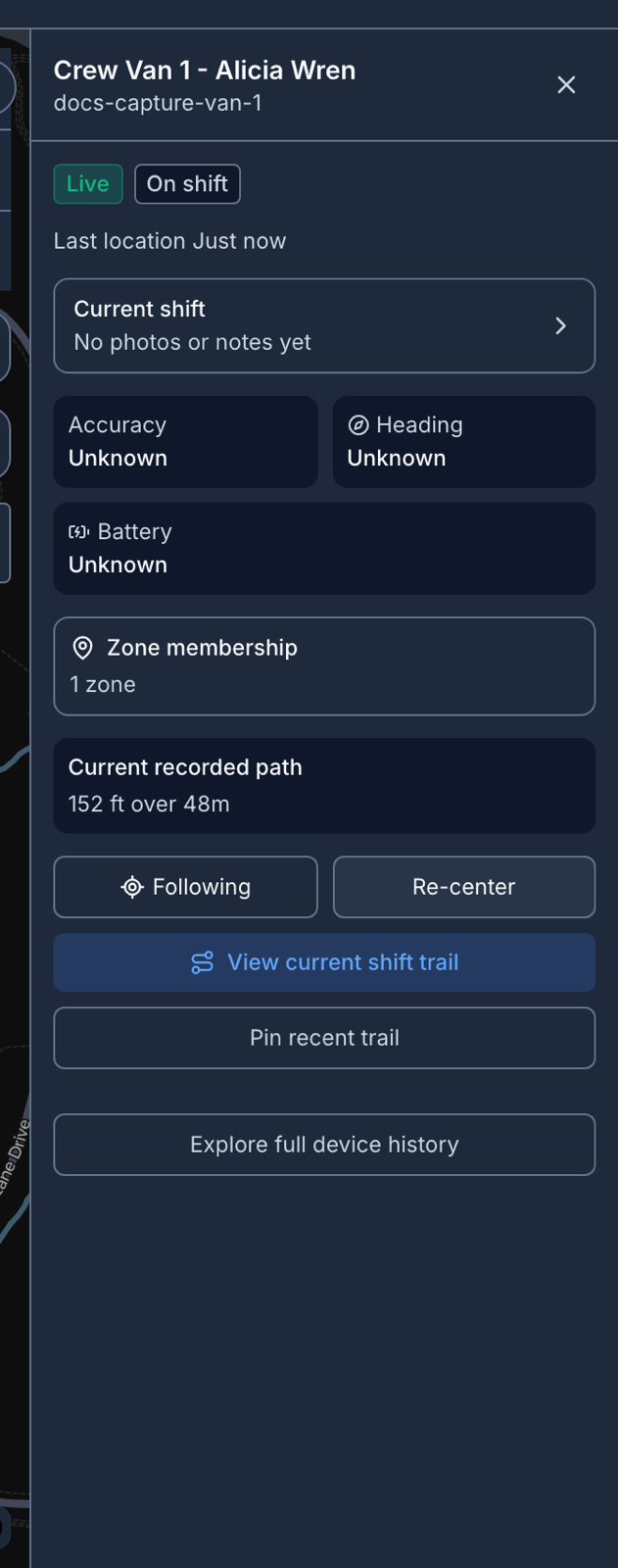
Click a device in the list, the roster or the map to open its details beside the map. They show the shift status, when it last reported, the accuracy and heading of that fix, the battery, which geofences it's in, and a summary of its recent path.
- Follow keeps the map centered on the device as it moves.
- View current shift trail, or View last shift trail after the shift ends, draws the shift's path with a dot at each recorded position. Hover or tap a dot for the time and accuracy of that fix. Back to live device returns to the live view.
- Pin recent trail keeps the device's recent path on the map while you look at others. You can pin up to eight.
- Explore full device history opens the device's page, with every finished shift. See Shift history and exports.
Reporting gaps
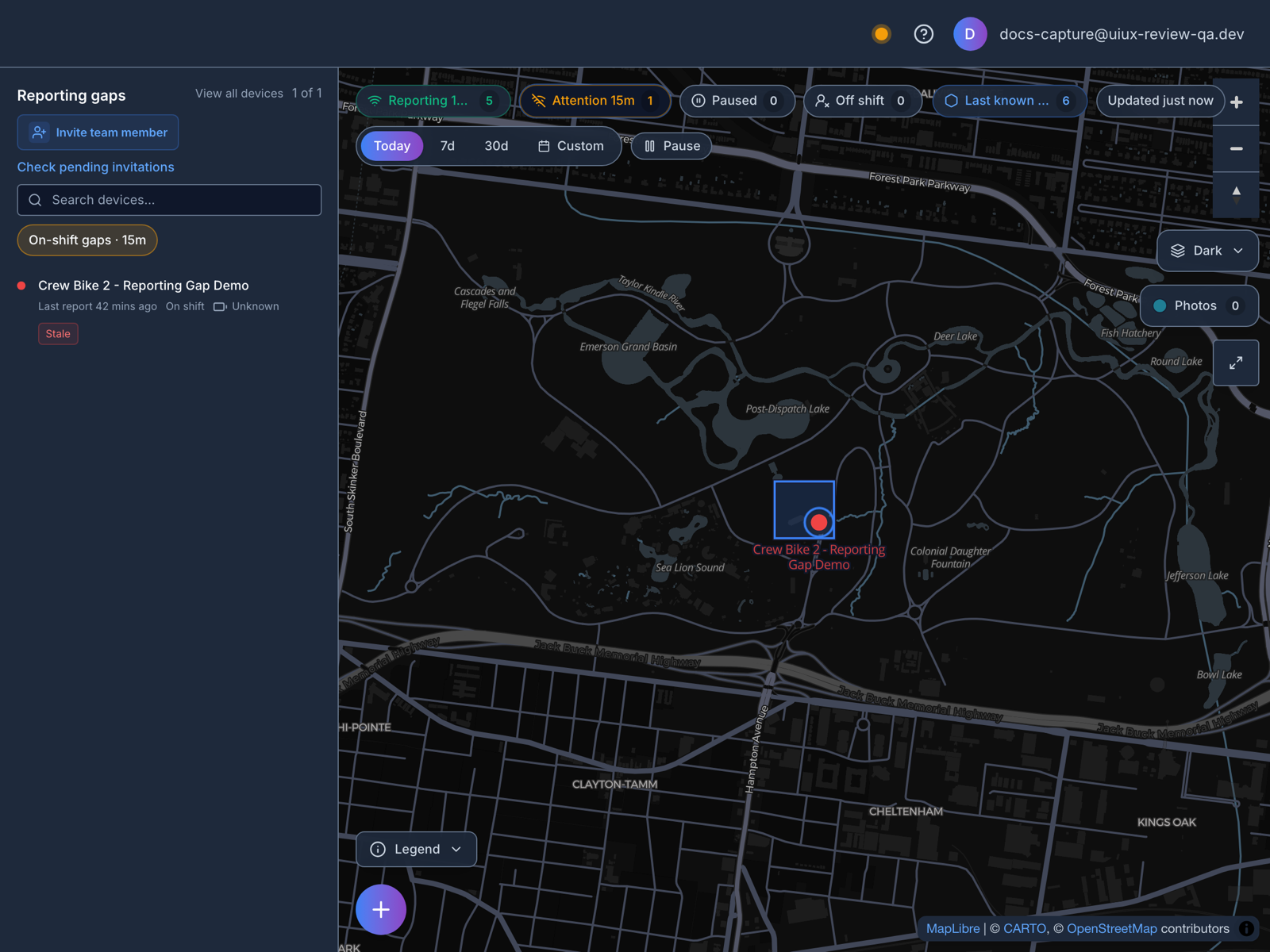
Investigate reporting gaps on the Overview opens this page with the list titled Reporting gaps. It shows only devices on shift that haven't reported in the last 15 minutes. Select one and its details add What to check next: connectivity, battery, location permission, and locations still waiting on the phone to upload. View all devices goes back to the full list.
Map controls
- The map style button, which names the current style, switches between Dark, Navigation and Satellite.
- The + button in the corner of the map opens Quick actions, including Fit devices, Go to workspace home, and, for owners and managers, Save current view as workspace home. See Where maps open.
- The map legend explains the colors, rings and arrows.
On a phone
On a phone the page has Map and List tabs, and a device's details open as a sheet over the map. The roster needs a wider screen, so use the List tab and its filters instead.